CBC-PROC-302 Version 1 last review date: 26th August, 2024
1. Flow
The below flow descriptions indicate the high-level data flow processes covered by the integration between CMMS and ServiceChannel, for the TK Maxx Contract.
1.1. Reactive Works (Origin: ServiceChannel)
- ServiceChannel user creates a Service Request.
- ServiceChannel user assigns Service Request to CBC Facilities Maintenance.
- ServiceChannel Webhook Service sends Notification to Boomi.
- Boomi creates CMMS Work Request.
- CMMS generates Notifications as usual.
- CMMS User converts CMMS Work Request to CMMS Work Order.
- Boomi detects change and:
- Updates ServiceChannel Work Order to ‘Accepted’.
- Updates ServiceChannel Work Order status to ‘In Progress/Dispatch Confirmed’.
- Updates ServiceChannel Work Order – adds Note with CMMS Work Order Number.
- CMMS Technician Logs on to the Work Order.
- Boomi detects change and:
- Updates ServiceChannel Work Order – adds a Check In.
- Updates ServiceChannel Work Order status to ‘In Progress/On Site’.
- CMMS Technician Logs Off – Works Complete
- Boomi detects change and:
- Updates ServiceChannel Work Order – adds a Check Out.
- Updates ServiceChannel Work Order status to ‘Complete’.
1.2. Preventative Maintenance (Origin: CMMS)
- On or about the 15th of the month, CMMS generates Preventative Maintenance Work Orders for the upcoming month.
- Boomi detects new Work Orders and:
- Creates a ServiceChannel Work Order.
- Updates the new ServiceChannel Work Order to ‘Accepted’, which triggers status change ‘In Progress/Dispatch Confirmed’.
- Updates the new ServiceChannel Work Order with a Note indicating the corresponding CMMS Work Order.
- Updates the new ServiceChannel Work Order with any Comments (Notes), Documents (Attachments) or Log Ons (Check Ins) added to the CMMS Work Order.
- Updates CMMS Work Order with the newly created ServiceChannel Work Order ID. (‘Customer Work Order Number’ Field).
1.3. Quoted Work (Origin: CMMS)
- CMMS user creates a CMMS Quote.
- Optional: user creates Proposed Work Order lines with ‘Quoted Work’ as the Work Order Type.
- Proposal is created manually in ServiceChannel via CBC Contracts Administrator.
- TJX approve quote by assigning the quote to ‘Helpdesk’ in ServiceChannel
- A notification is sent via email to helpdesk.
- CBC Helpdesk approve the CMMS Quote.
- CBC Helpdesk converts the CMMS Quote to CMMS Work Order(s).
- CMMS user creates Proposed Work Order lines with ‘Quoted’ as the Work Order Type.
- CMMS user converts Quote.
- Boomi detects new Work Orders and creates them in ServiceChannel.
- ServiceChannel user updates ServiceChannel quote to approved, linking the recently created ServiceChannel WO, rather than creating a new ServiceChannel Work Order.
1.4. TK Max Purchase Orders (Origin: CMMS)
- TK Max issues a Purchase Order to CBC (from it’s Oracle system)
- CBC User creates a manual CMMS Work Order
- Populate the Customer Reference Number field with the TK Max Purchase Order number.
- Leave the Customer Work Order Number field blank. This will be populated by the integration automatically when it creates the ServiceChannel Work Order.
- Populate Work Order Type with ‘Purchase Order Works – Oracle PO’.
- Attach the PDF to the Work Order.
- Issue the Work Order as normal.
- Boomi detects the new CMMS Work Order and creates a new ServiceChannel Work Order.
2. Procedures
2.1. Handling Work Requests
As per the flow, CMMS Work Requests will be created by the integration when a ServiceChannel WO is created that is not already linked to a CMMS Work Order. This gives CBC the opportunity to accept or decline the ServiceChannel Work Order, as well as add necessary job information, select a Provider, etc.
2.1.1. Accept a ServiceChannel Work Order
To accept a ServiceChannel Work Order, simply convert the CMMS Work Request into a Work Order. The integration will detect this new Work Order and its link to the WR, and send the ‘Accept’ message accordingly. There is no need to send an email back to ServiceChannel. Note: This CMMS change may take up to 10 minutes to be propagated to ServiceChannel.
2.1.2. Decline a ServiceChannel Work Order
Where we need to decline a ServiceChannel Work Order, simply reject the CMMS Work Request. Put the declination reason in the CMMS ‘Reject’ pop-up form. The integration will detect this change and send a ‘decline’ message to ServiceChannel, which will include the message entered. Note: This CMMS change may take up to 10 minutes to be propagated to ServiceChannel.
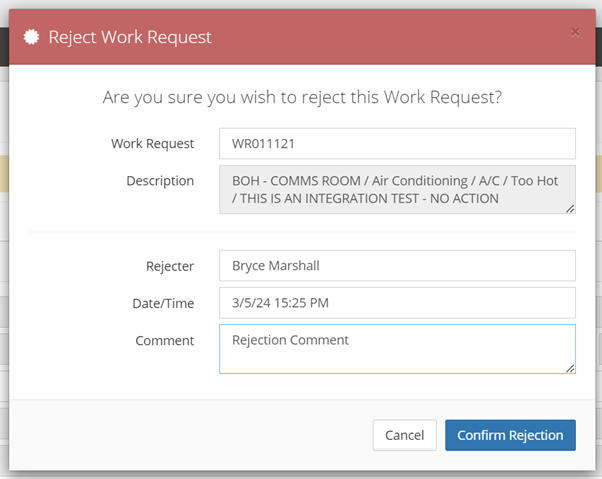
Image: The Work Request ‘Reject’ pop-up form
2.1.3. Automated Elements
The following elements of the Work Request process are automated:
- CMMS to ServiceChannel:
- Client Comments
- Documents that are Client visible
- ServiceChannel to CMMS:
- Notes
- Attachments added
- NTE value changes
- Priority Changes
- Scheduled Date changes Note: Once a CMMS Work Request is converted to a CMMS Work Order, elements coming from ServiceChannel will go to that Work Order, rather than the Work Request.
###2.2. Handling Work Orders Once a Work Order is created and is linked successfully to a ServiceChannel Work Order, there are no further pre-work steps to take. Completing the Work Order in the usual fashion will update the ServiceChannel Work Order as needed, i.e., technician Log On’s will trigger status changes, documents attached will propagate automatically, and a Log Off with ‘Works Complete’ will change ServiceChannel Work Order to ‘Complete’.
2.2.1. Manual WO Creation
Never populate ‘Customer Work Order Number’. This will be populated automatically by the integration once it has created the SC WO. Entering a value here will cause the transfer to fail. Note: When selecting a Service Type, only the first selected Service Type is used in the creation of the ServiceChannel Work Order, therefore this should be the primary trade, i.e., ‘Electrical’, ‘HVAC’, etc. Other Service Types, such as ‘High-risk Work’ etc, can then be selected.
2.2.2. Child Work Orders
Child Work Orders are not transfered to Service Channel, and therefore any comments, documents etc, are also not transferred.
2.2.3. Automated Elements
The following elements of the Work Order process are automated:
- CMMS to ServiceChannel:
- Client Comments
- Documents that are Client visible
- Log Ons and Log Offs
- Some Status changes
- In Progress
- Works Complete
- ServiceChannel to CMMS:
- Notes
- Attachments added
- NTE value
- Priority Changes
- Scheduled Date changes
2.3. Handling Quotes
2.3.1. Processing an assigned Proposal
When a TK Maxx client wishes to approve a quote, rather than approve their ServiceChannel Proposal, they will assign that proposal to CBC Helpdesk (or Denise) with a note of ‘Approved’. This will generate a notification to CBC Helpdesk as per the example below.
- CBC Helpdesk mark the CMMS Quote ‘Approved’.
- CBC Helpdesk generate the CMMS Work Order(s).
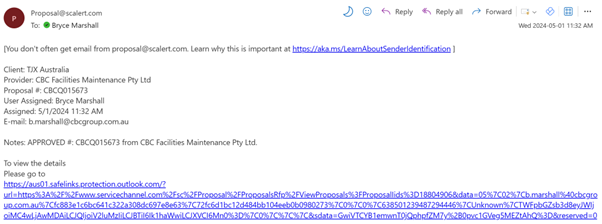
Image: Example of ServiceChannel Proposal Assignment
Note: When selecting a Service Type, only the first selected Service Type is used in the creation of the ServiceChannel Work Order, therefore this should be the primary trade, i.e., ‘Electrical’, ‘HVAC’, etc. Other Service Types, such as ‘High-risk Work’ etc, can then be selected.
2.4. Invoicing
- The CMMS WO Customer Work Order Number field should be left with the Service Channel Work Order (tracking) number.
- The CMMS WO Customer Reference Number field will be used for the TK Maxx PO number.
- The ‘TK Maxx Source Summary’ template has been updated to include the Customer Work Order Number field.
3. Updating Integration Mapping
3.1. Adding New Sites
For a new Site to work correctly with the integration, the new Site needs to exist in both platforms, and the integration Site mapping needs to be updated. Once Sites are created, send an email to the CMMS Support team (cmmssupport@cbcgroup.com.au) with the following details:
- CMMS Site Name
- ServiceChannel Site Name Work Orders should not be raised in either platform until CMMS Support advises that the integration mapping has been updated, otherwise the transfer will fail.
3.2. Service Types
CMMS Service Types are mapped to ServiceChannel Trade Names. When new Service Types are to be introduced, please advise the CMMS Support team with the appropriate values in both CMMS and ServiceChannel. If new Service Types are added and used without being added to the integration settings, failures will occur and Work Orders will not transfer successfully.
4. Troubleshooting
| Flow | Issue | Resolution |
|---|---|---|
| CMMS Origin Work Order | The Customer Work Order Number hasn’t become populated after waiting at least 10 minutes. | This usually indicates that a failure has occurred when attempting to create the ServiceChannel Work Order. This is often due to mapping issues, such as where Service Type doesn’t have a matching element in ServiceChannel. Advise CMMS Support. |
5. Support
- Please email through issues to CMMS Support (cmmssupport@cbcgroup.com.au), preferably with screenshots, WO numbers, when WO raised etc. The more details the better.
- The support team receives emails when failures occur, but as this is a new process, not every failure may generate an email. As such, please raise all issues you see.