MOR-PLN-040 Version 1 Last Review Date: February, 2025
Technician App - Deployment
1. Overview
| Component | Description |
|---|---|
| Project | A DevOps Project for the App |
| GIT Repo | A GIT Repo component within the App projetct |
| DevOps Pipelines | |
| Google Play Store | |
| Apple App Store |
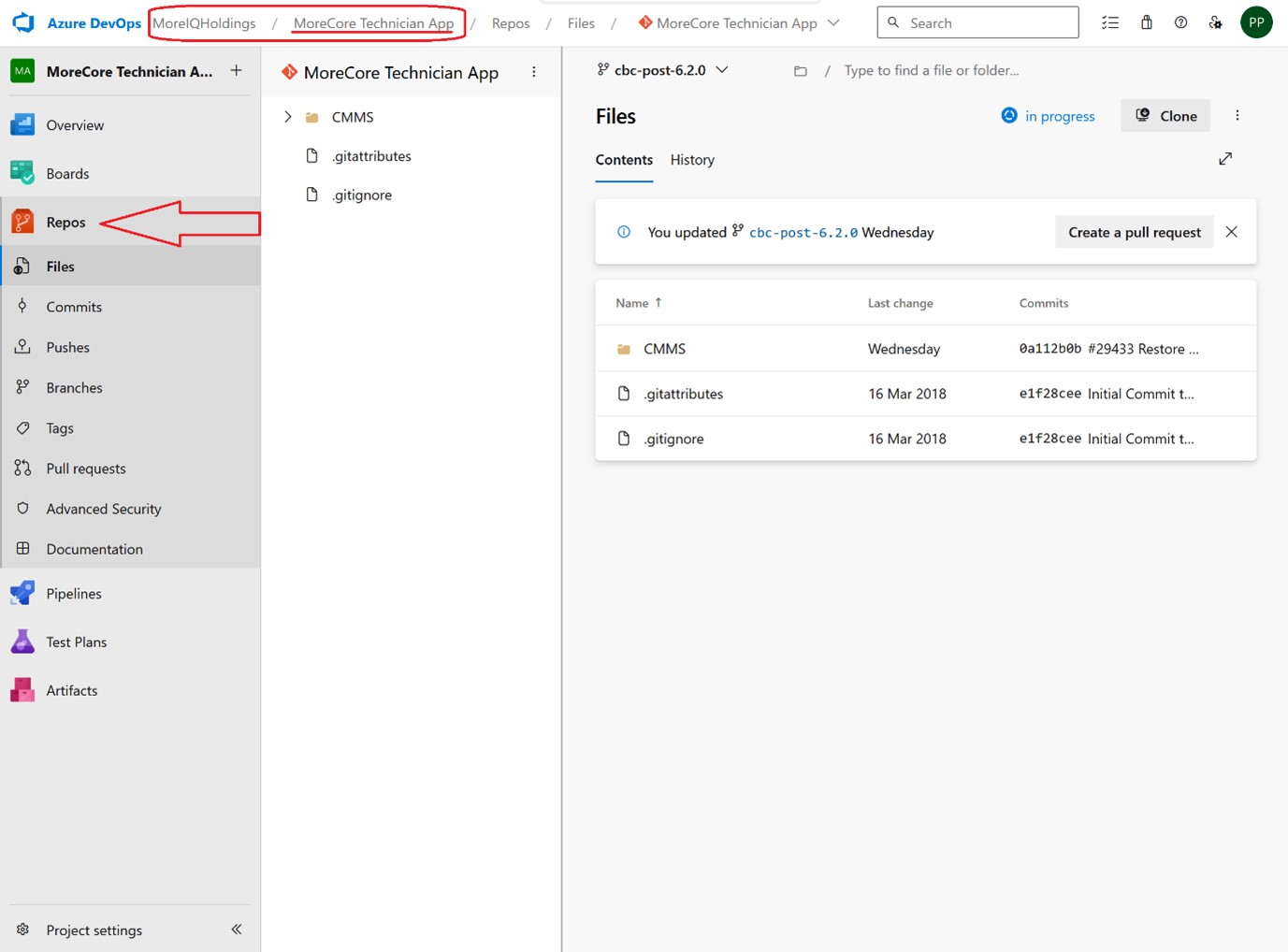
2. DevOps Project and Repo (Source Code)
https://dev.azure.com/MoreIQHoldings/_git/MoreCore%20Technician%20App (opens in a new tab)
3. Pipelines
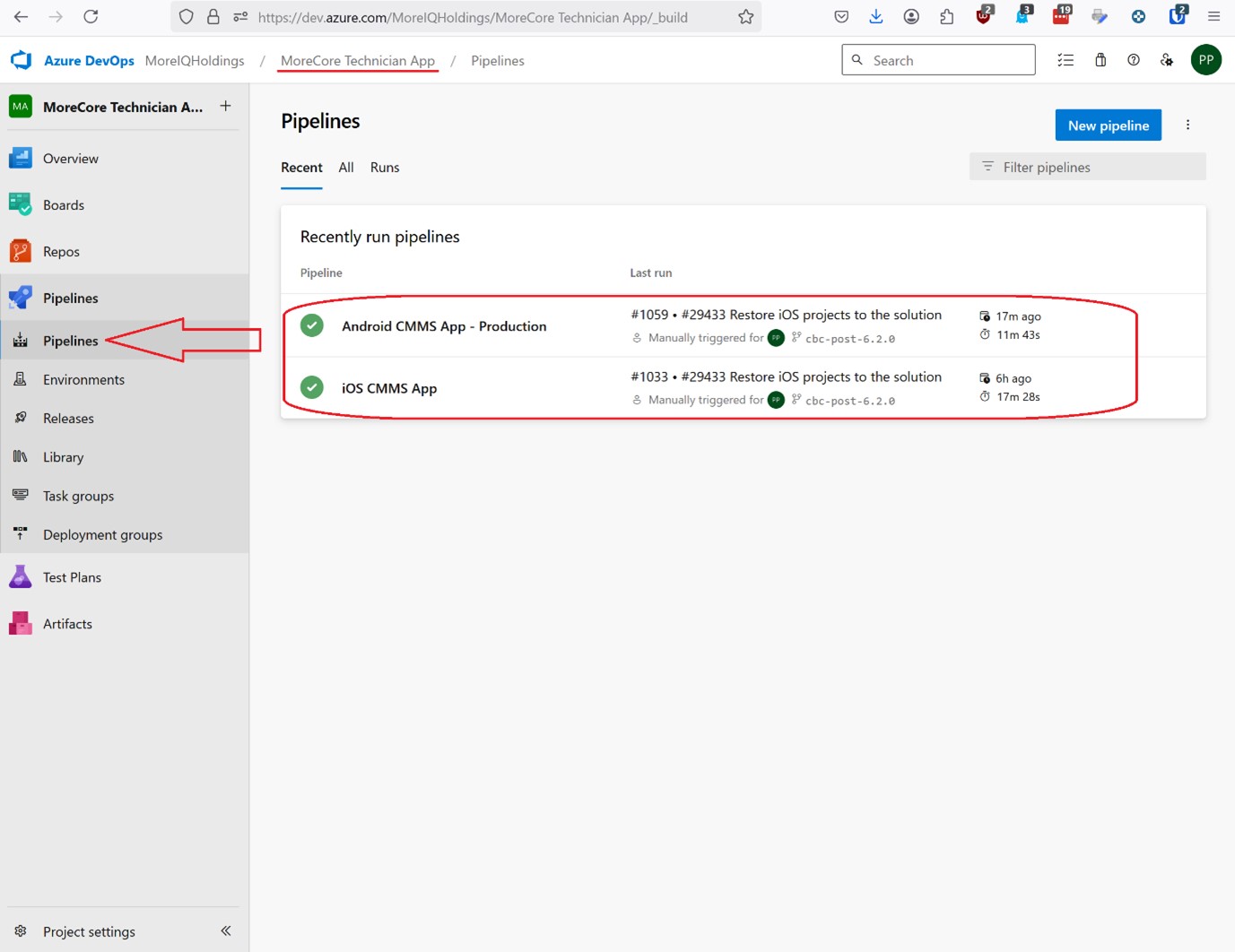
Build pipelines for both Android and iOS are managed in the same DevOps project.
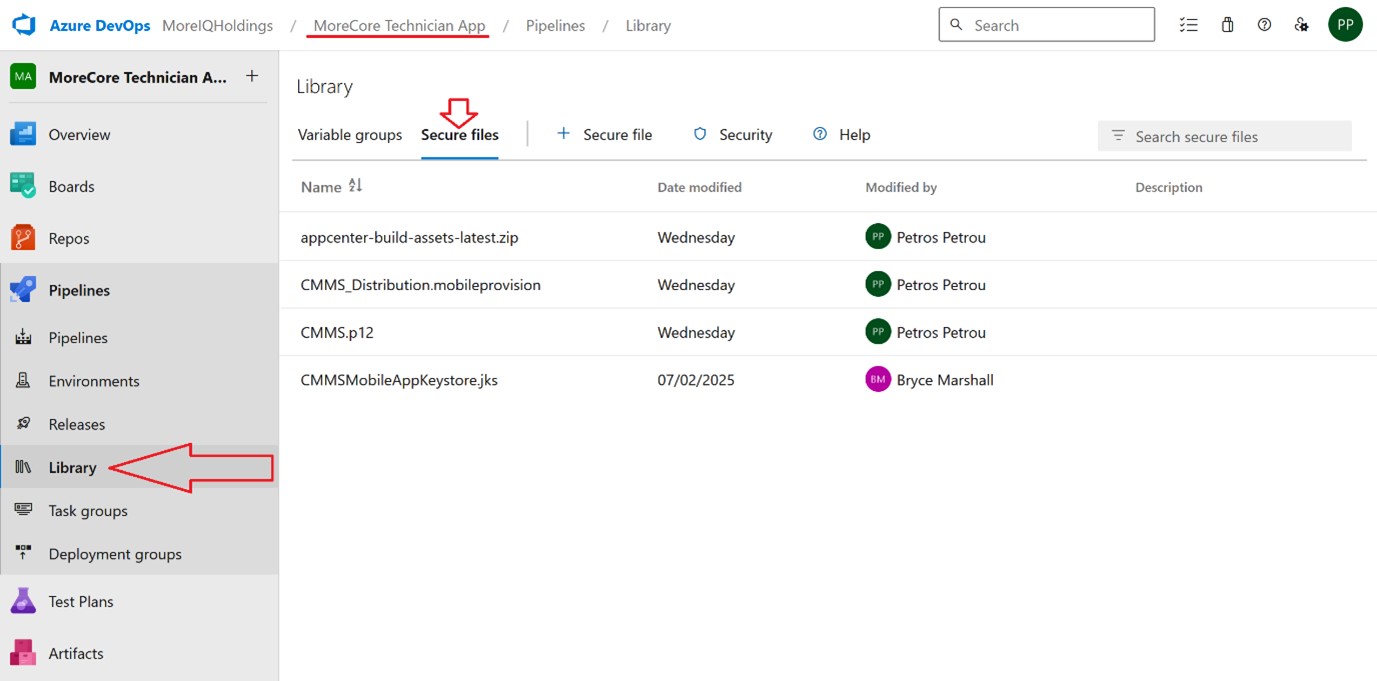
3.1. Library
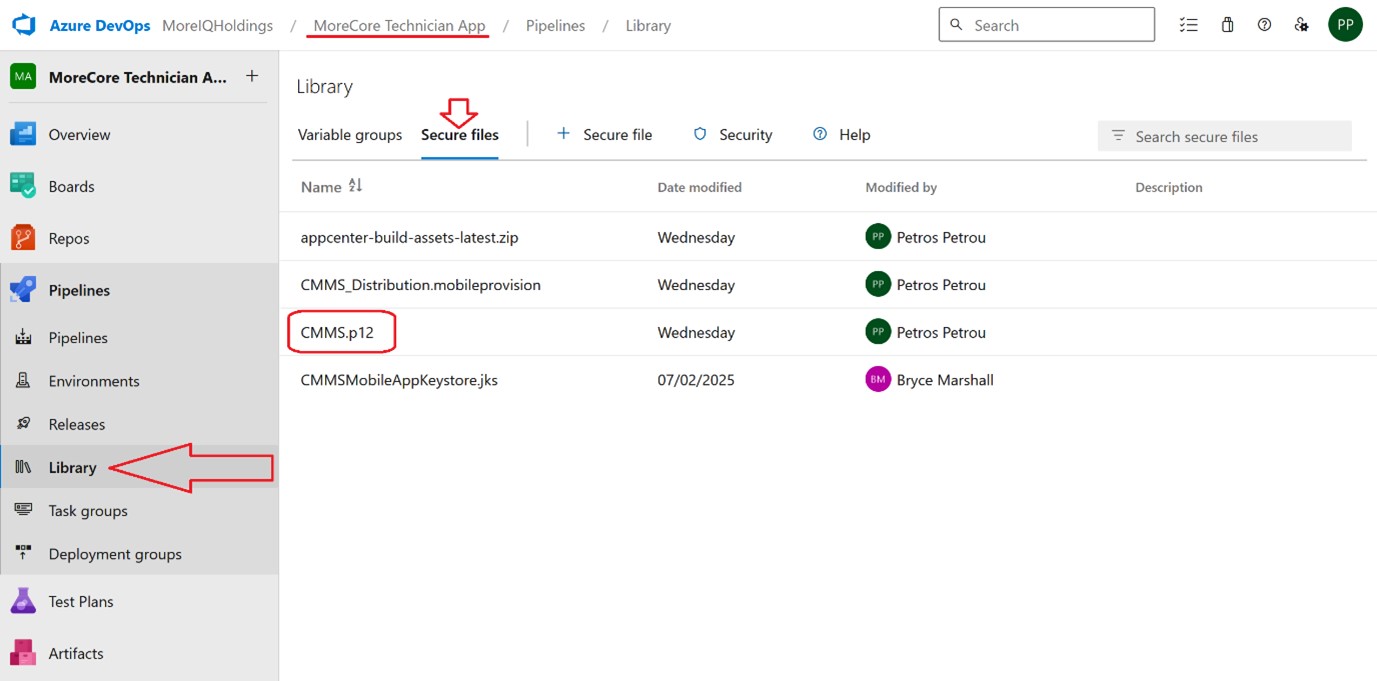
The pipelines rely on files, like certificates and keys, that are uploaded and stored securely on the Pipeline Library: https://dev.azure.com/MoreIQHoldings/MoreCore%20Technician%20App/_library?itemType=SecureFiles (opens in a new tab)
3.2. Build Pipelines
For android, the base build Pipeline that is responsible for building the bundle, can be found here: https://dev.azure.com/MoreIQHoldings/MoreCore%20Technician%20App/_build?definitionId=42 (opens in a new tab)
Equally, for iOS, the base build Pipeline that takes care of building the IPA bundles is found here: https://dev.azure.com/MoreIQHoldings/MoreCore%20Technician%20App/_build?definitionId=44 (opens in a new tab)
3.3. Release Pipelines
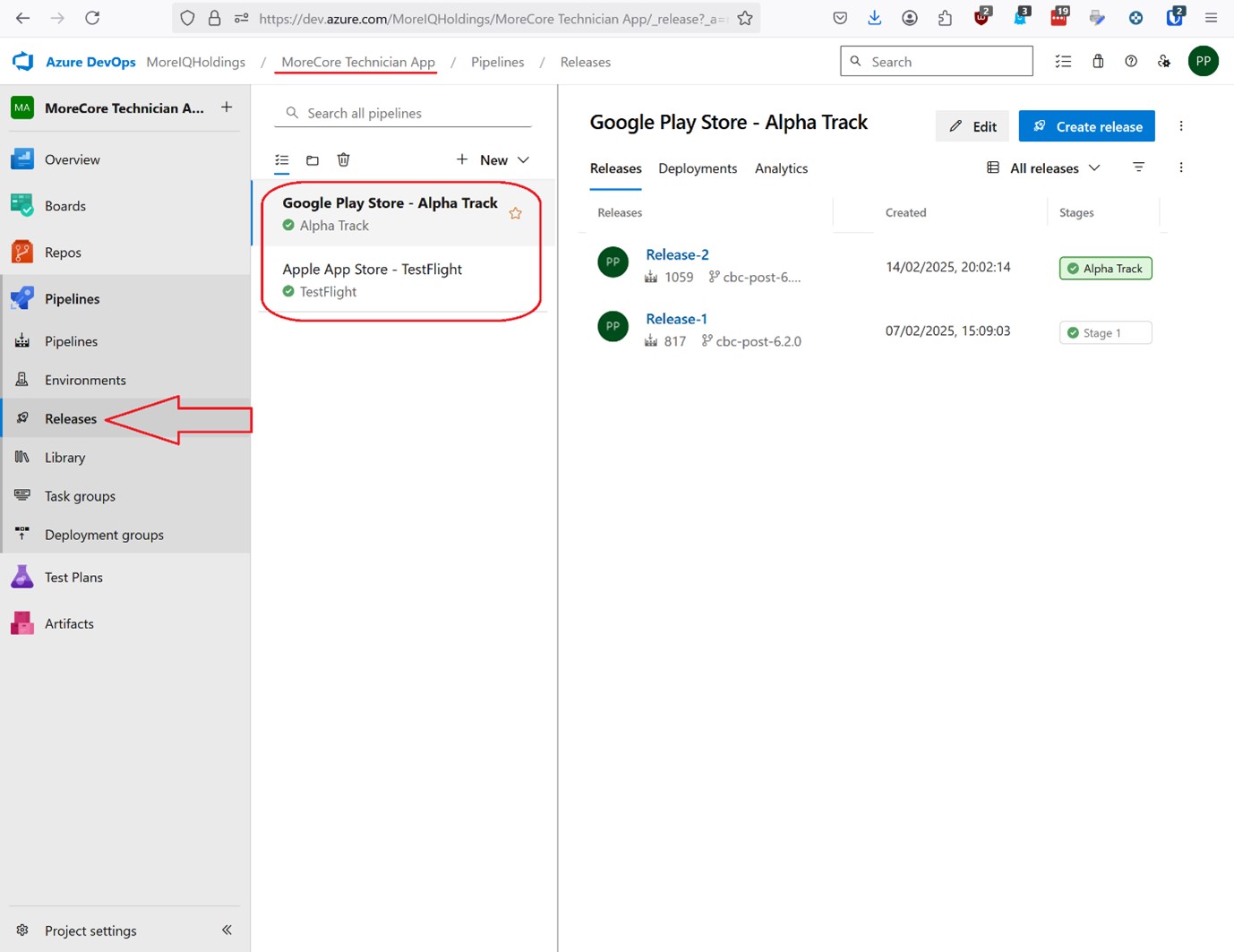
Bundles created from the android build pipeline, are made available for pushing to Google Play using the following Release flow: https://dev.azure.com/MoreIQHoldings/MoreCore%20Technician%20App/_release?_a=releases&view=mine&definitionId=1 (opens in a new tab)
The IPA bundles created from the ios build pipeline can be push to Apple AppStore using the bellow Release flow: https://dev.azure.com/MoreIQHoldings/MoreCore%20Technician%20App/_release?_a=releases&view=mine&definitionId=2 (opens in a new tab)
3.4. Service Connections
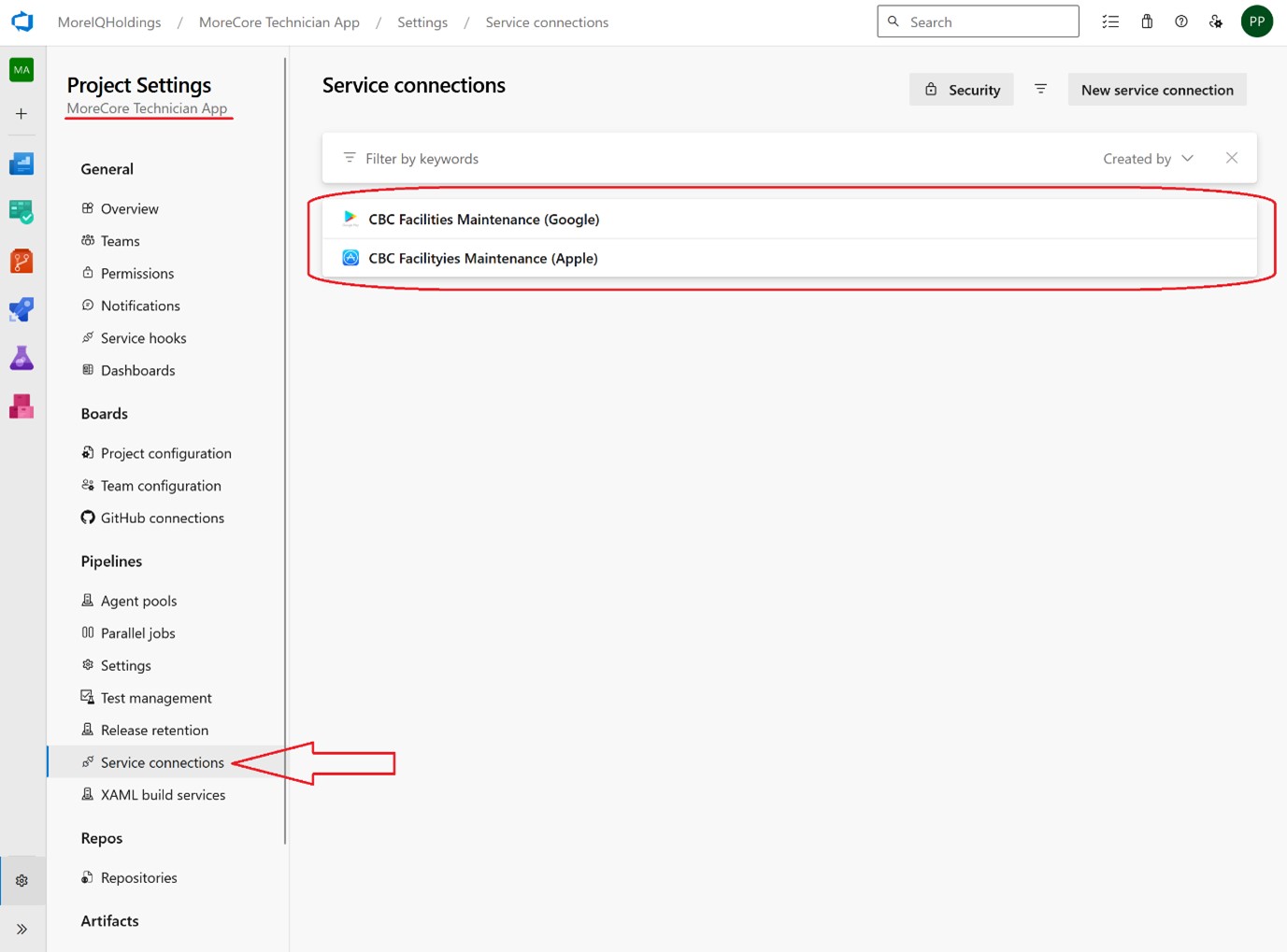
Both Release flows, rely on Service Connections, for communicating with Google Play and Apple AppStore. Those are found here: https://dev.azure.com/MoreIQHoldings/MoreCore%20Technician%20App/_settings/adminservices (opens in a new tab)
4. Build and Deploy Android
Prerequisites
Building for android requires the keystore that is used to sign the binaries to be accepted by Google Play. The keystore should be stored in the Pipeline Library as secured file.
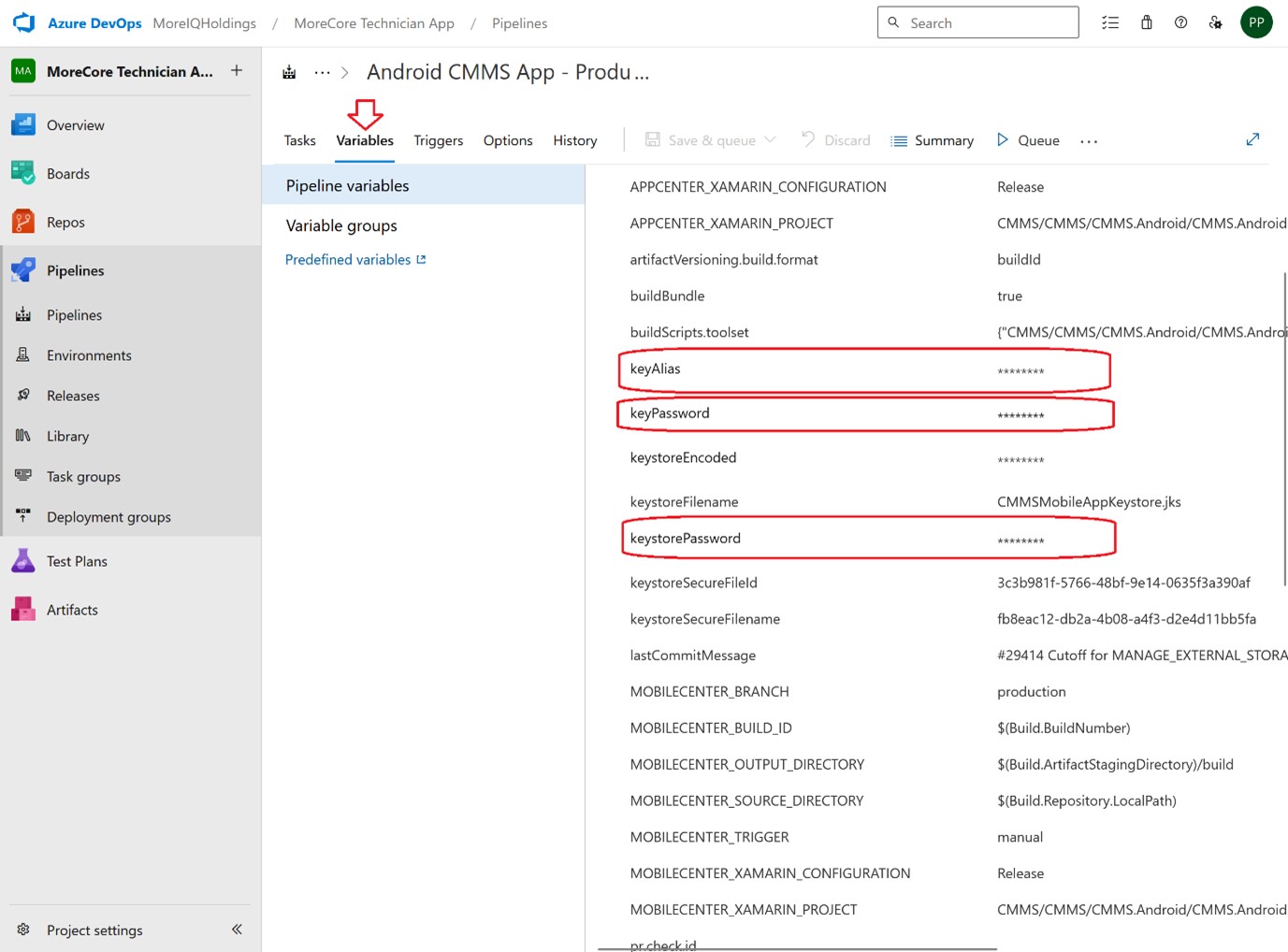
The keystore password, alias and key password should be set on the build pipeline, under Variables for keys keystorePassword, keyAlias and keyPassword respectively.
Build
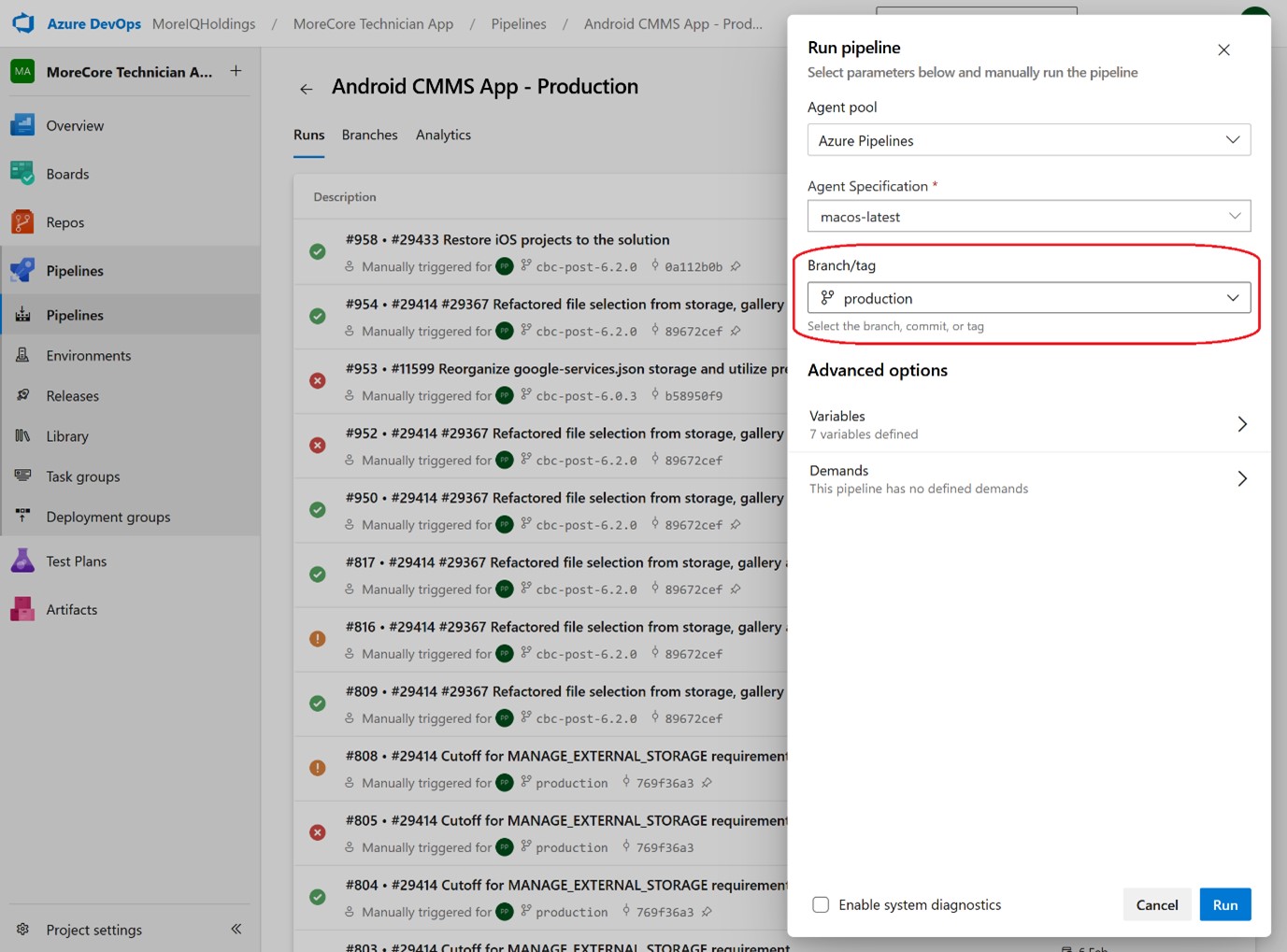
The build pipeline is configured to only run manually. When a new build is necessary, from the pipeline you can click on the Run Pipeline button. At that point you have the option to select from which branch of the git repository you would like to build the app.
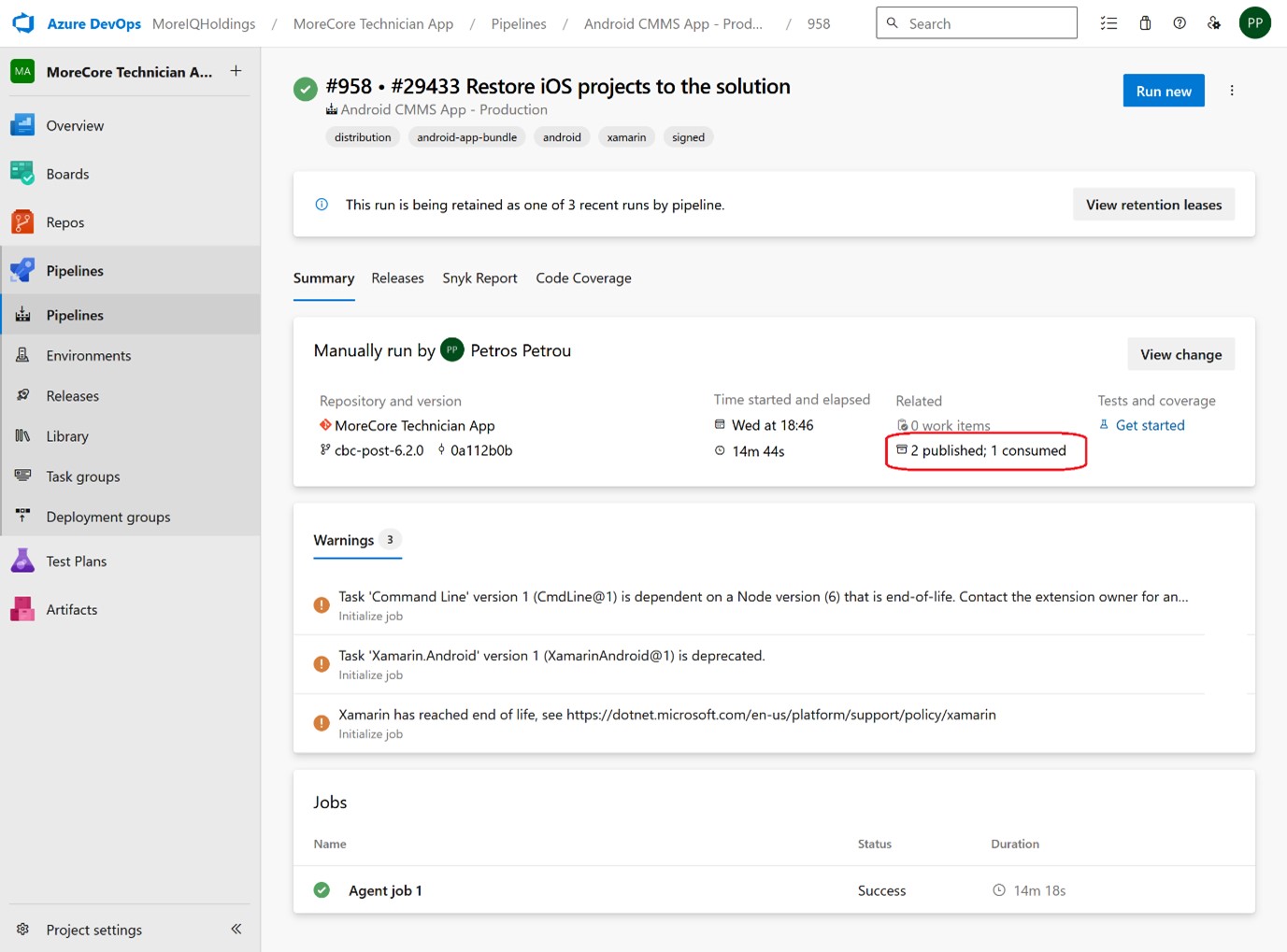
The pipeline takes care of building both a bundle and an .apk, which can be found under the artifacts of the individual build, after a successful run of the pipeline.
Deploy
The artifacts created from the build Pipeline are available to the Release pipeline. It is configured to also run on-demand. When you are ready to push a new version to Google Play, you can click “Create Release” button from the Release flow. It will then trigger the process of uploading the bundle to Alpha Track on Play, as draft.
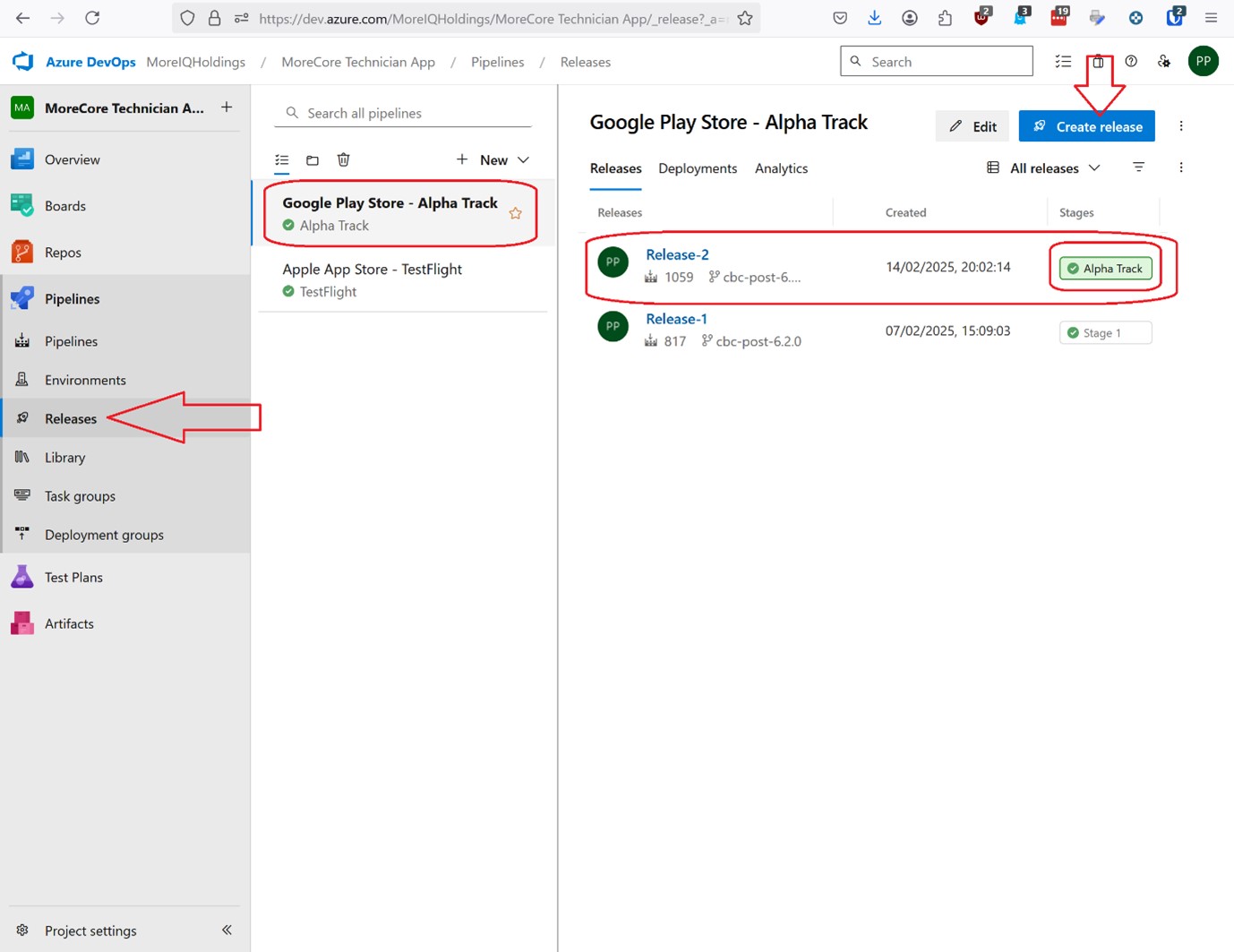
Once the bundle is pushed to Google Play, you will have to manually finalize and submit for review, from Play console, to make the version available for testing via Alpha track. Similarly, once you are ready to publish a new version to production track, you have to manually Promote the release from Play console.
Distribute for Testing
TODO
- Enable new build in Test flight
Release to Play Store
Navigate to the Google Play Console
Navigate to the App Dashboard
- Under 'Test and release', select 'Releases overview'
- In the list of releases, find the latest production build on the Alpha track. Click it.
- Review details.
Release App
- Click 'Promote Release'.
- Follow prompts to release the app.
5. Build and Deploy iOS
Prerequisites
For building for iOS, an active certificate and distribution provisioning profile, uploaded to Pipeline Library, as secured files.
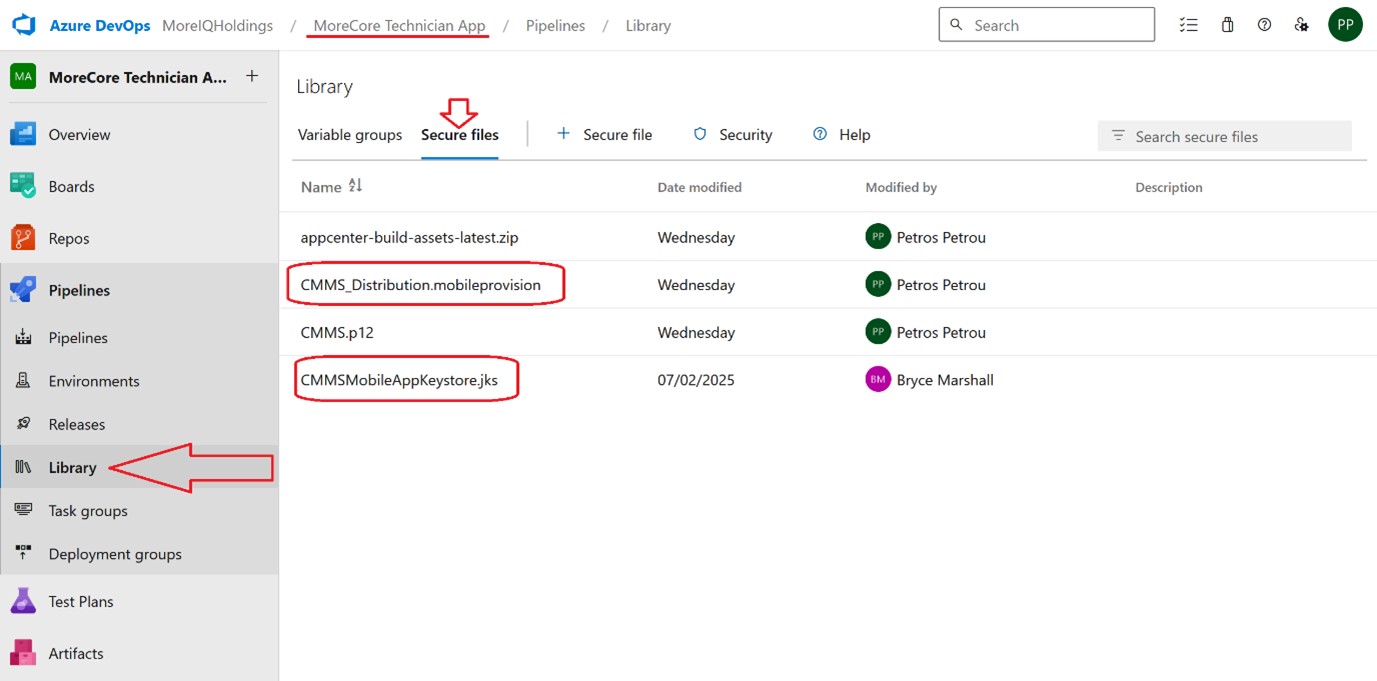
The password for the certificate should be saved in the build Pipeline variables, under key P12Password. If the certificate or distribution provisioning profile has expired, new ones are required to be issued and uploaded to the Pipeline Library.
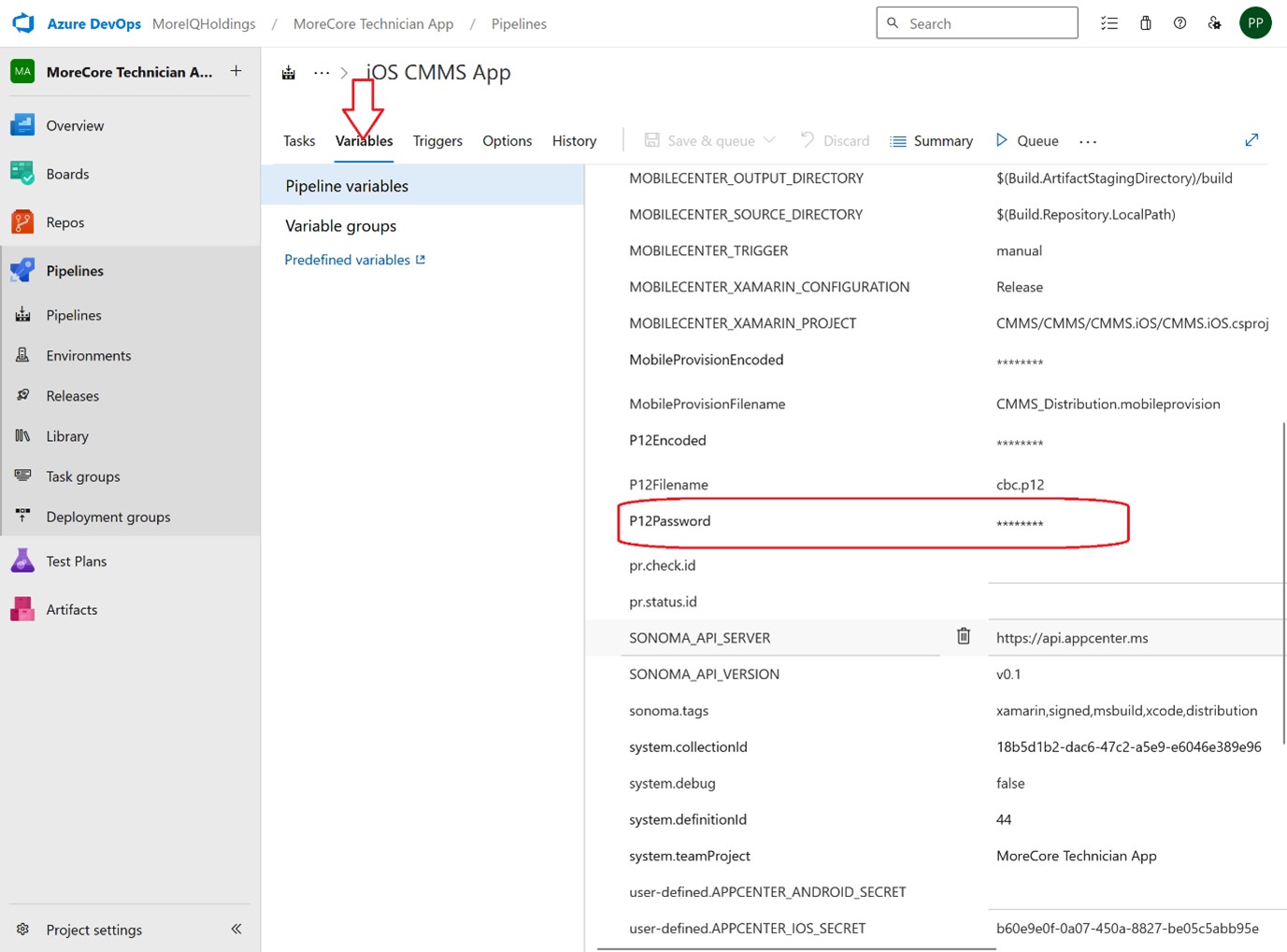
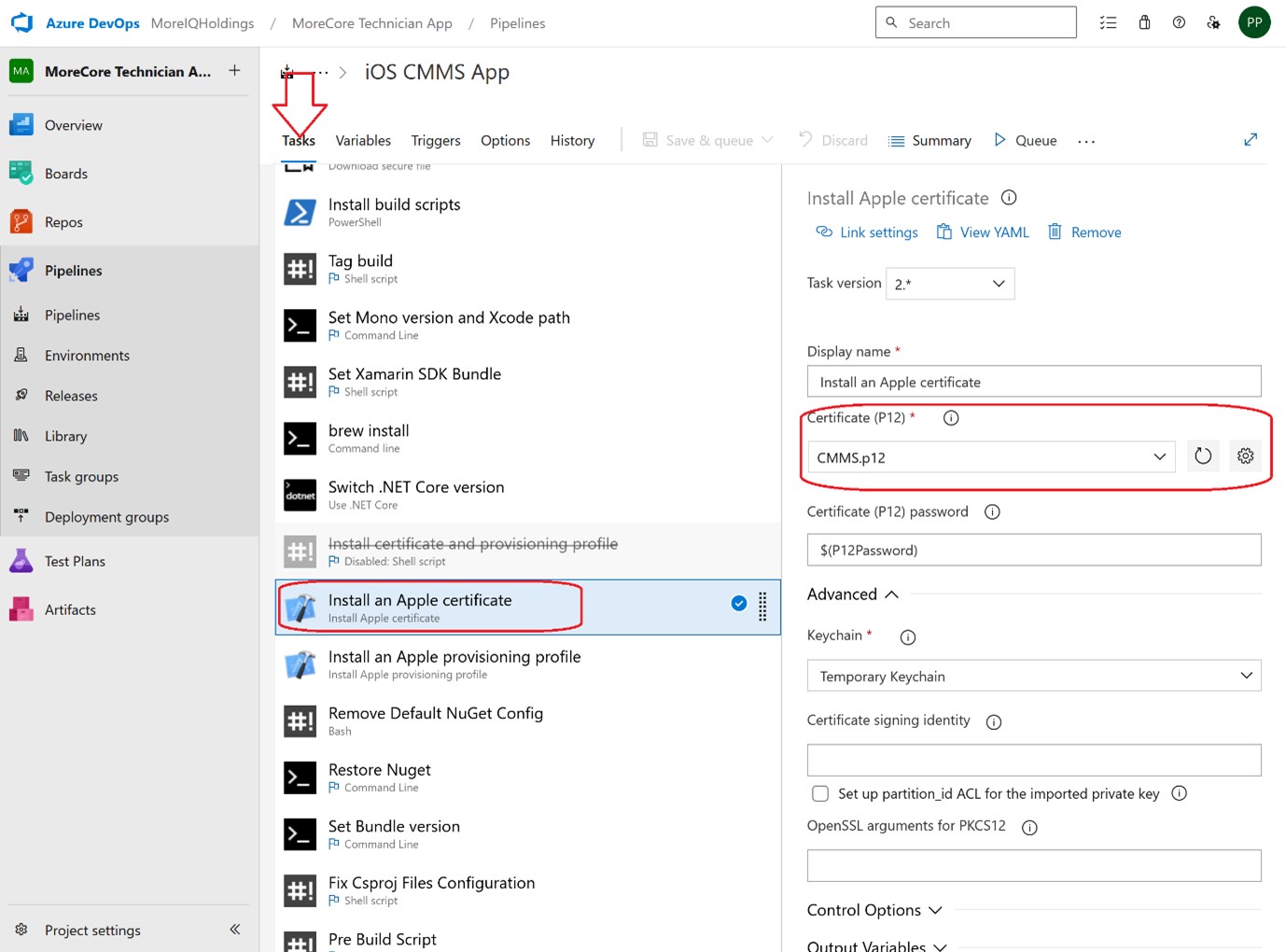
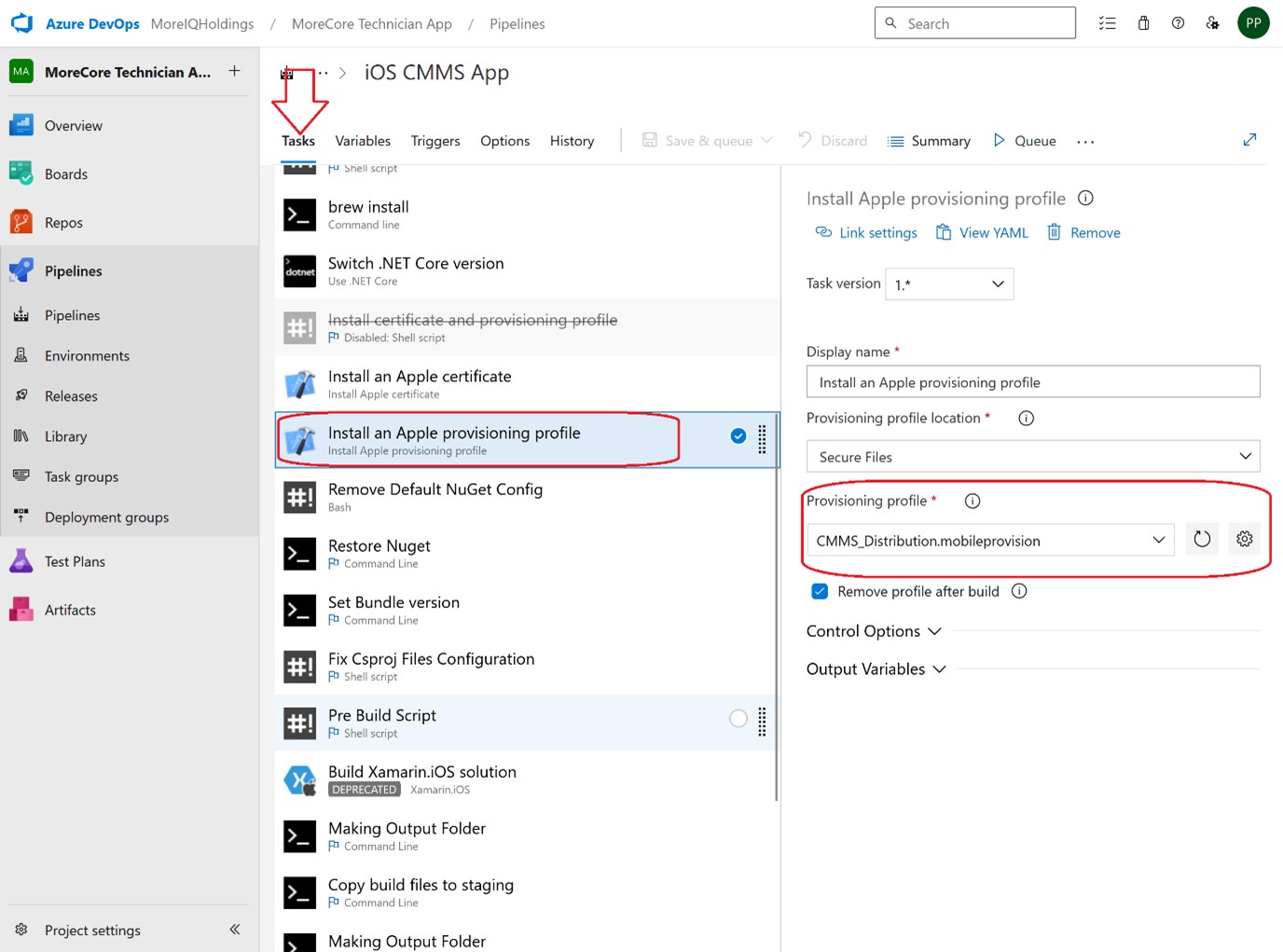
In that case, the files must be updated within the build Pipeline. You can do so by clicking Edit on the Pipeline and task “Install an Apple certificate” you update the “Certificate (P12)” to the new file. Similarly for task “Install an Apple provisioning profile” you select the appropriate file for “Provisioning profile”. You then Save the changes on the Pipeline.
Build
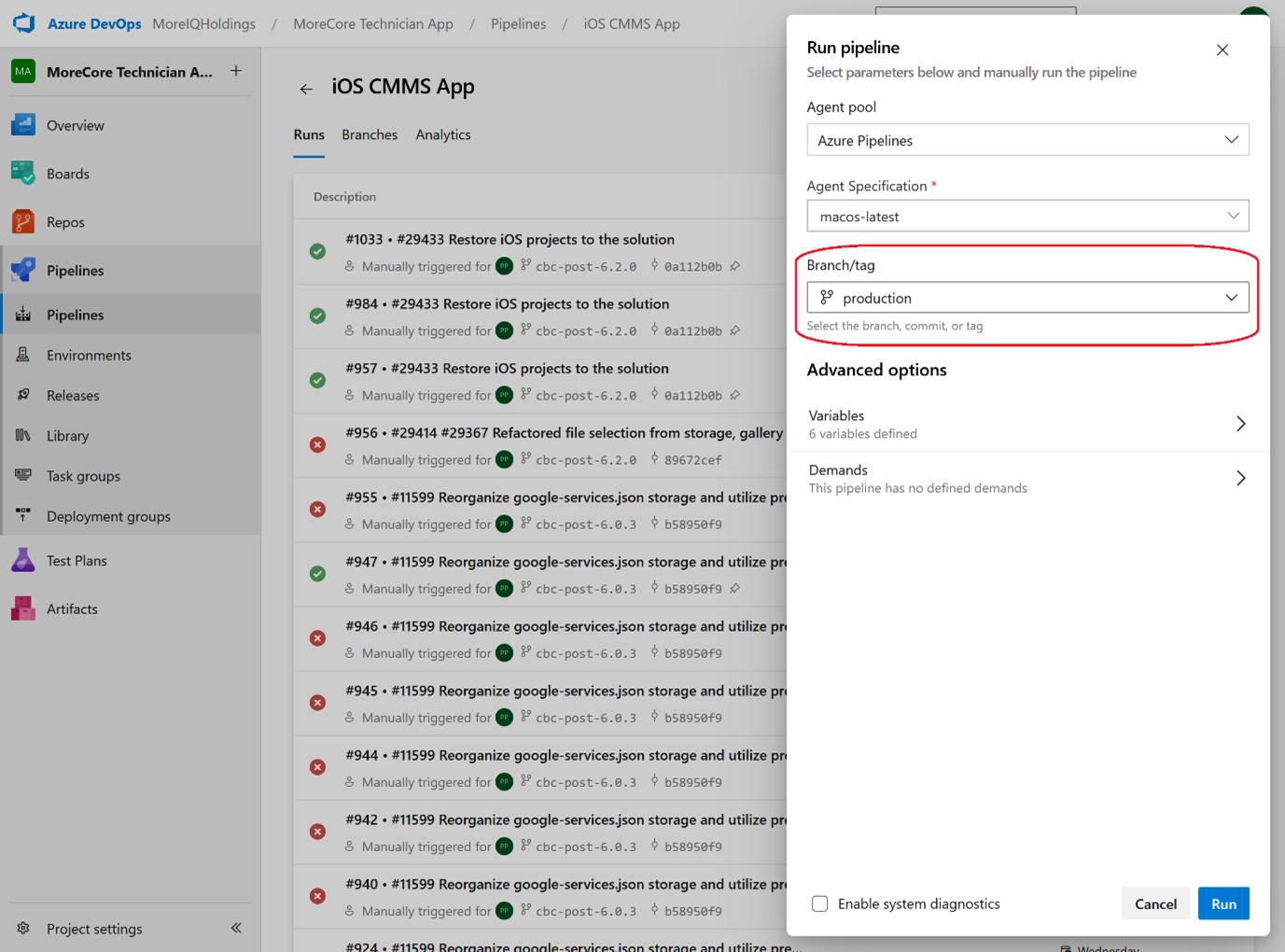
As with the android build, the build Pipeline is only run manually. Clicking Run Pipeline allows you to choose which branch of the git repository you would like to build against.
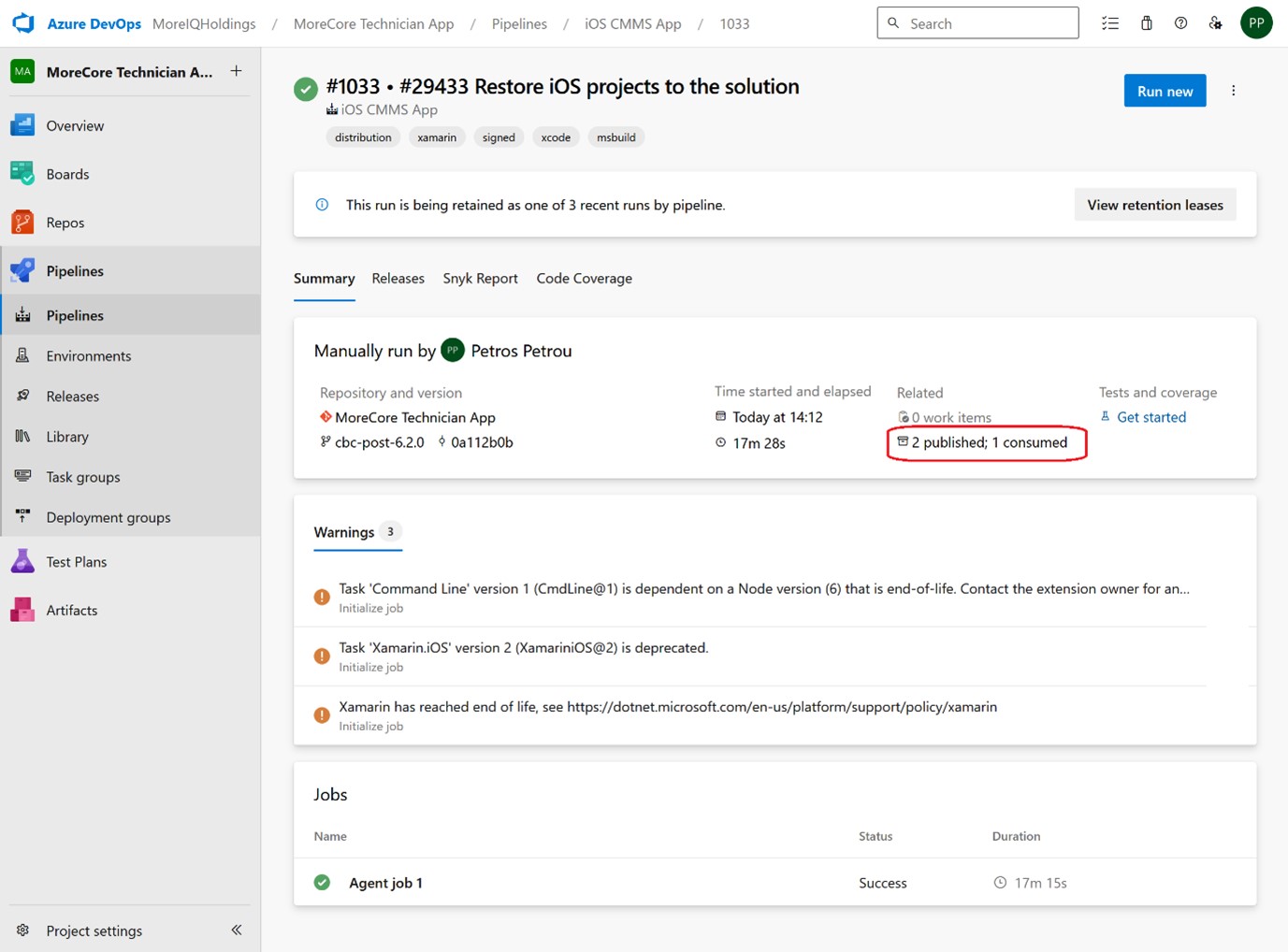
Once the pipeline finishes, the .ipa is stored as artifact under the build run.
Deploy
The artifacts from the build Pipeline are available to the Release pipeline. The Release pipeline is only run on-demand. When you need to make a new version available to Apple TestFlight, you can click “Run Release”. The pipeline will take care of pushing the bundle to TestFlight and making it available for testing to testers linked with TestFlight.
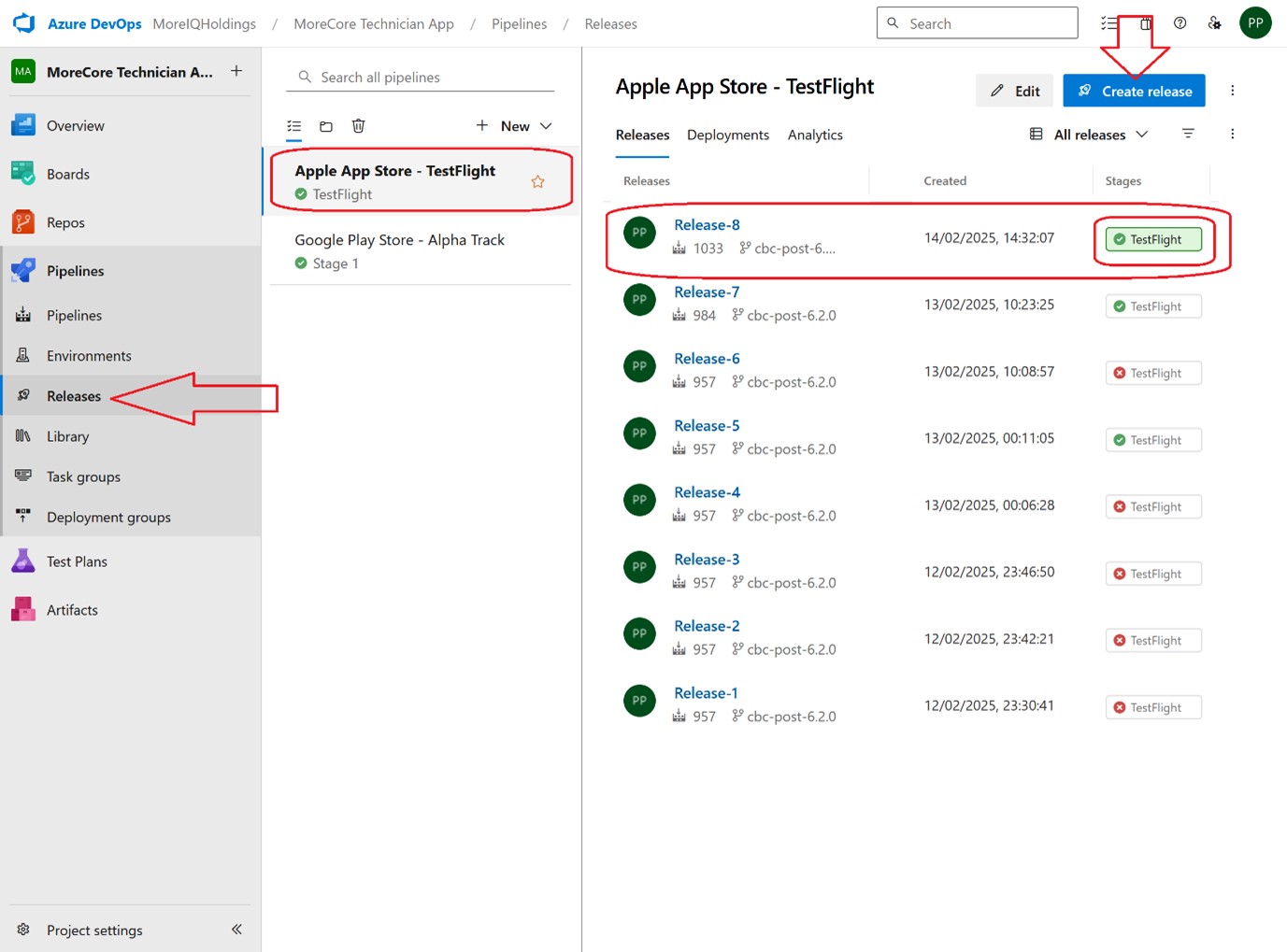
When the version is ready for production, you can create a new release on AppStore, choose the relevant build and push for review as usual.
Distribute for Testing
TODO
Release to App Store
TODO
6. Manage Service Connections
For the Release pipelines to push the build bundles to the respective Stores, they need access to the developer accounts of both Google and Apple. In this section we describe how the Service connections are configured, in order to be kept active if needed.
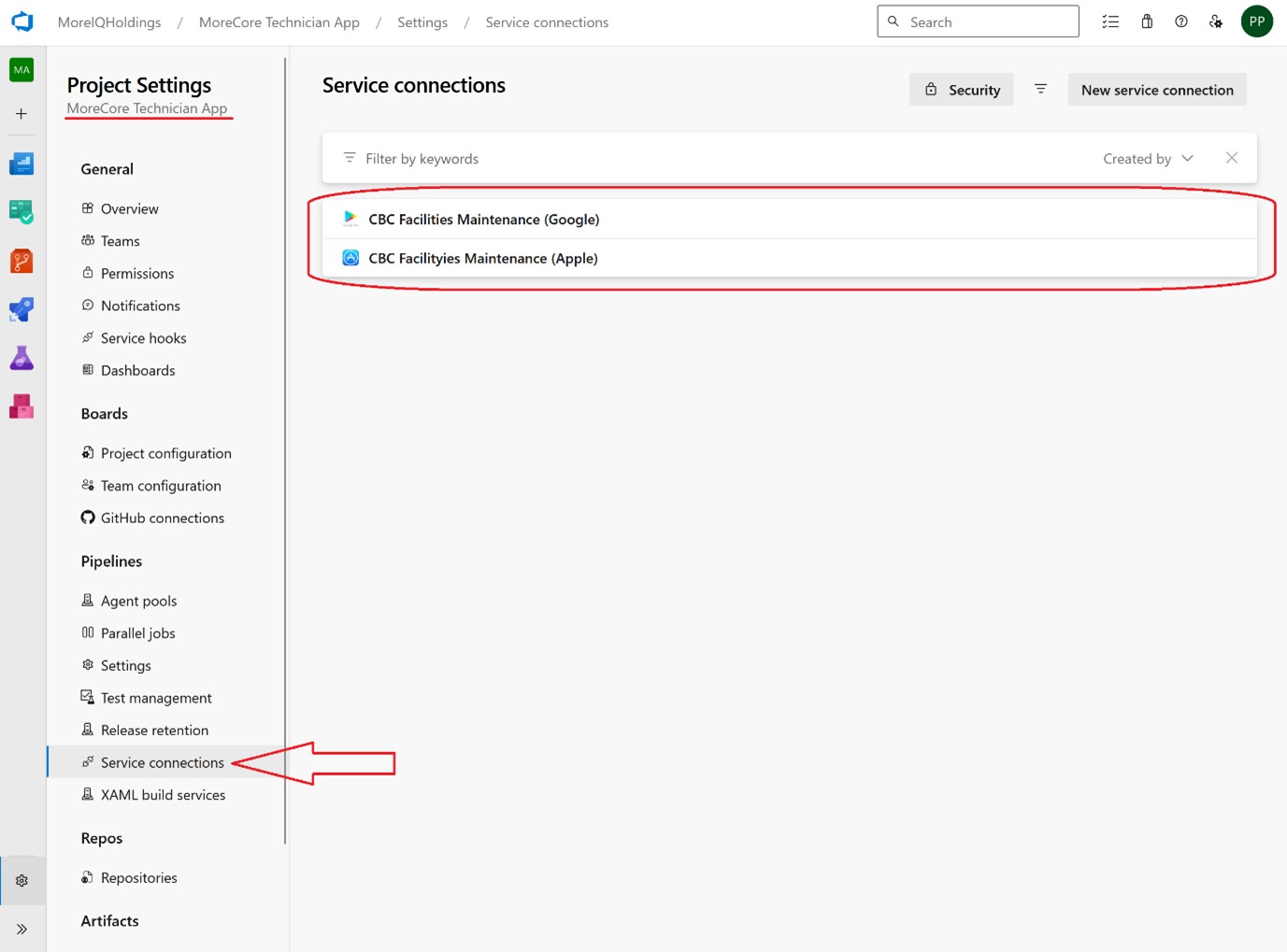
Google Play
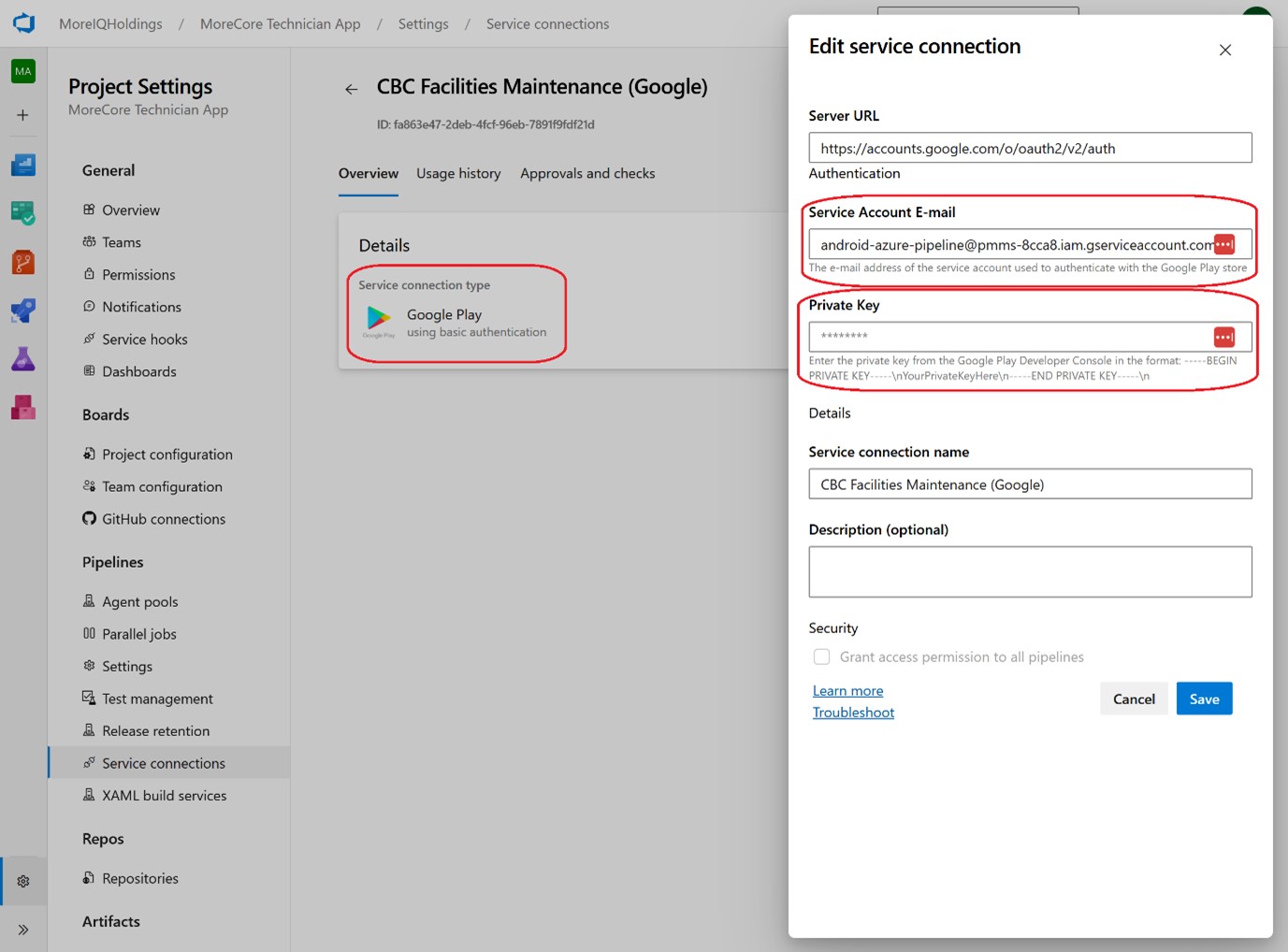
In order to setup a service connection for Google Play, a Service account is required to be setup under Google Cloud console. Currently the service account is created under project “CBC CMMS” with the email address: android-azure-pipeline@pmms-8cca8.iam.gserviceaccount.com
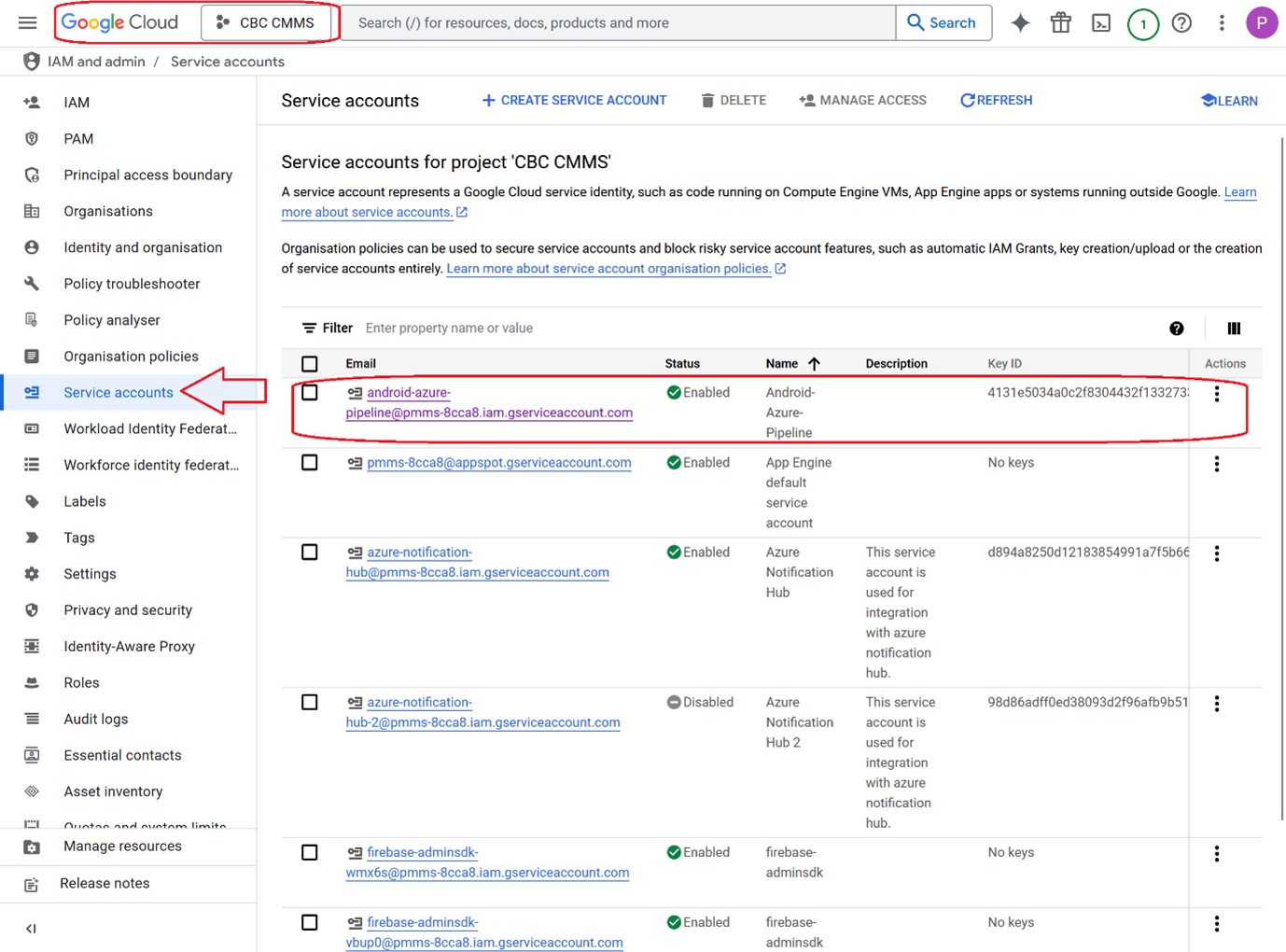
A Key is generated for that account, that will be later used on Azure DevOps Service connection, in order to access Google Play console and push the bundle. Before this is done though, the newly created service account must be added as a user to the Google Play console, with appropriate permissions.
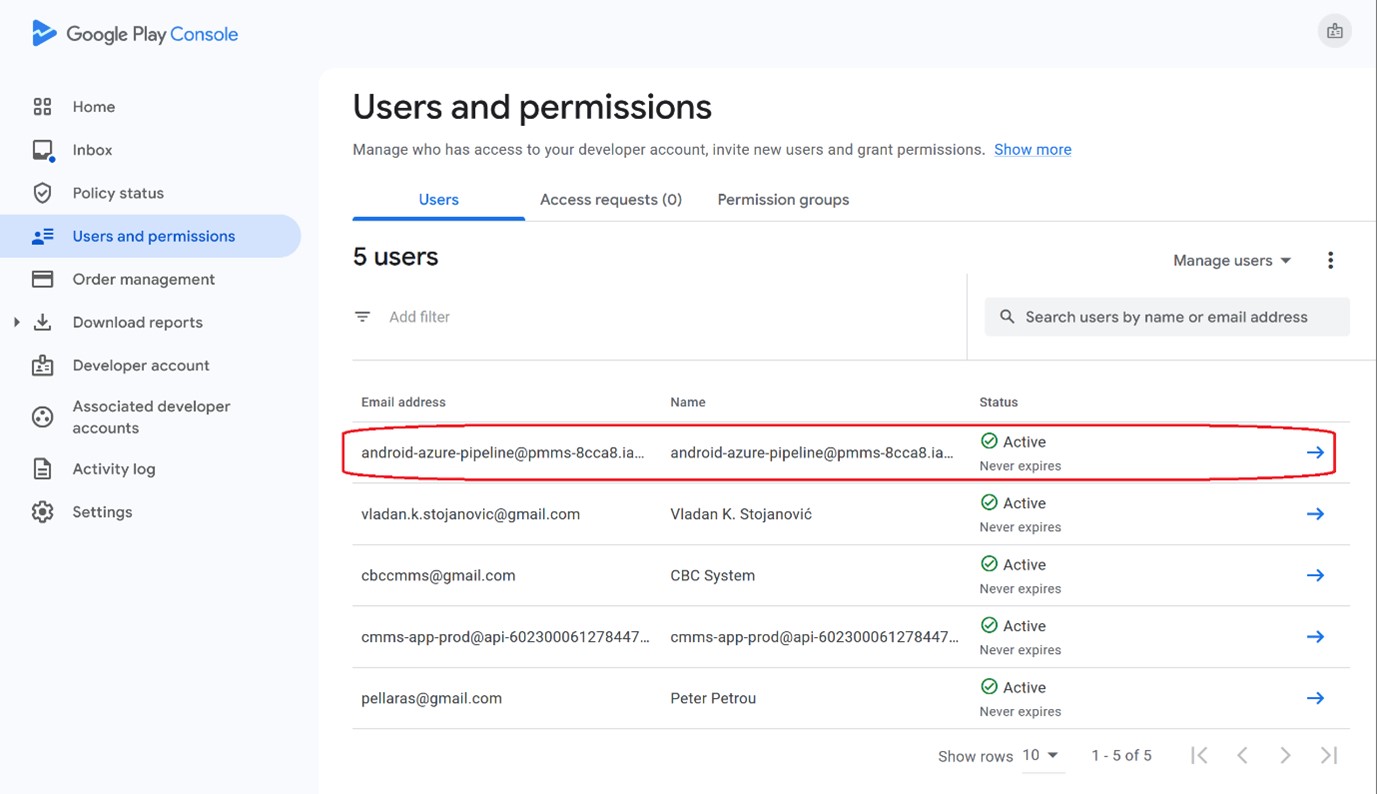
Finally, the details of the service account are used to create the Service connection under Azure DevOps, using the email address and the generated key.
Apple AppStore
To setup a Service Connection with Apple AppStore, we need to create an App Store Connect API key, with App Manager level access, from here: https://appstoreconnect.apple.com/access/integrations/api (opens in a new tab)
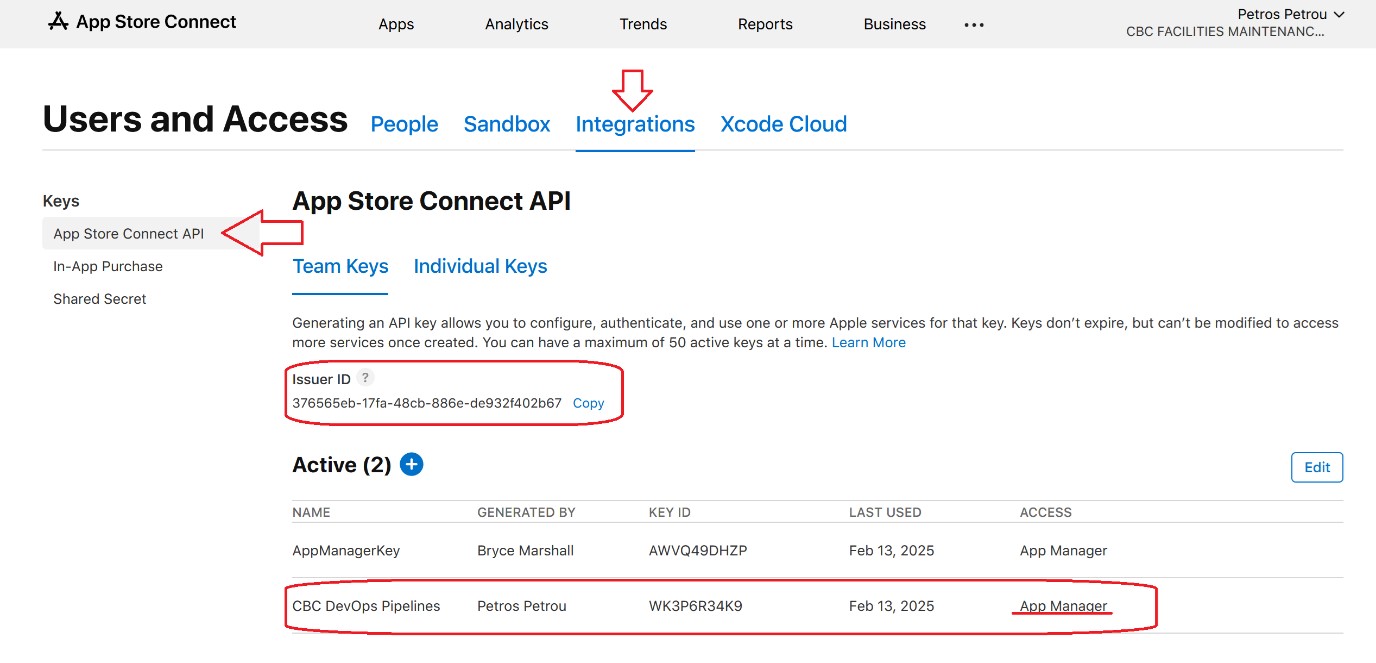
Once we download the AuthKey, we need to convert its contents to base64, in order to enter it as plain text in the Service connection under Azure DevOps. We will also need the Issuer ID, as well as the Key ID. The Authentication method must be “Token Based Authentication”.
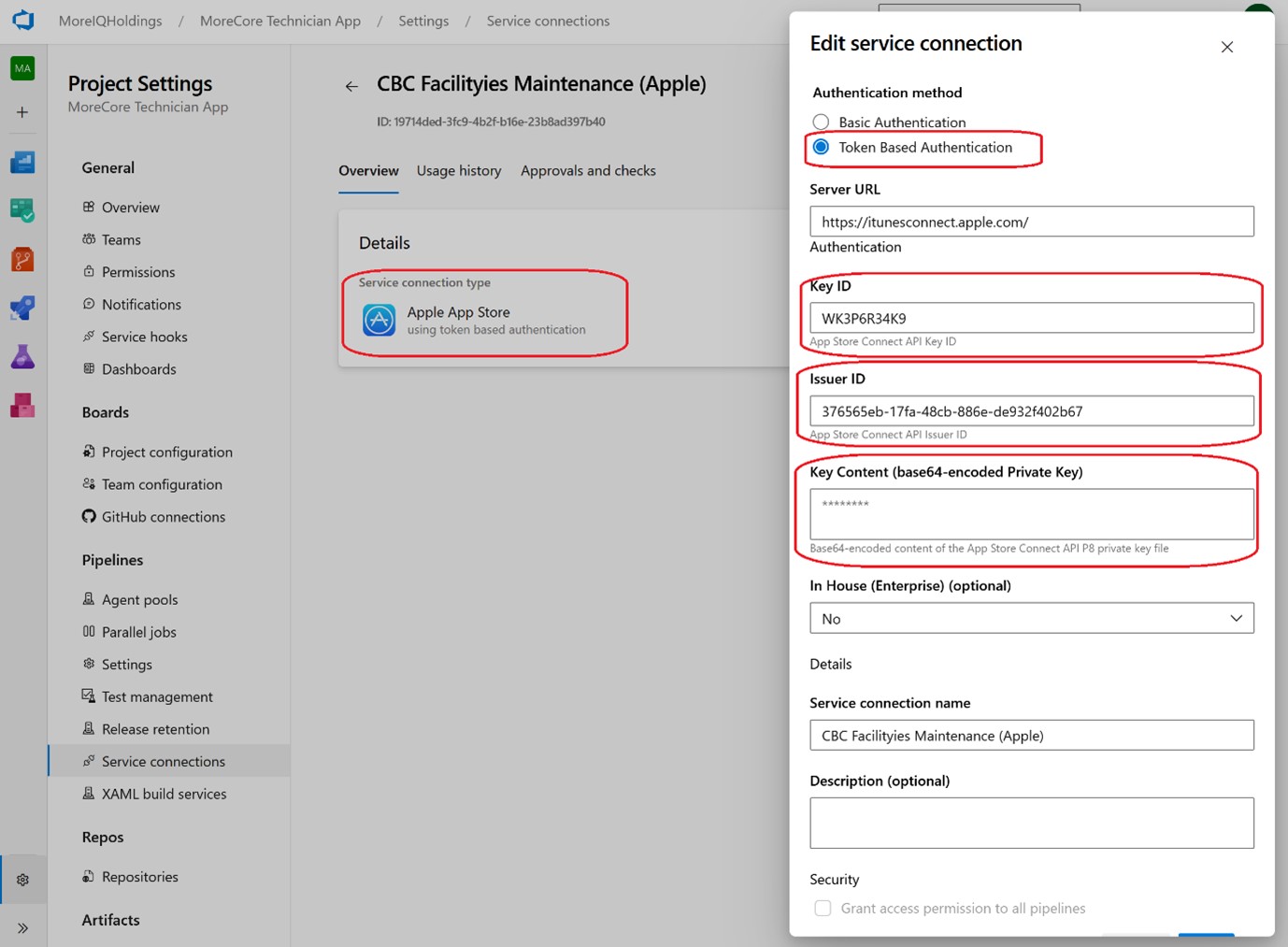
TODO: Detail the steps to be taken in DevOps
7. Cloning Pipelines for different environments
For building an app for a different environment, the pipelines can be cloned, and the variables can change to reflect the endpoints, keys and other configurations of the target environment.
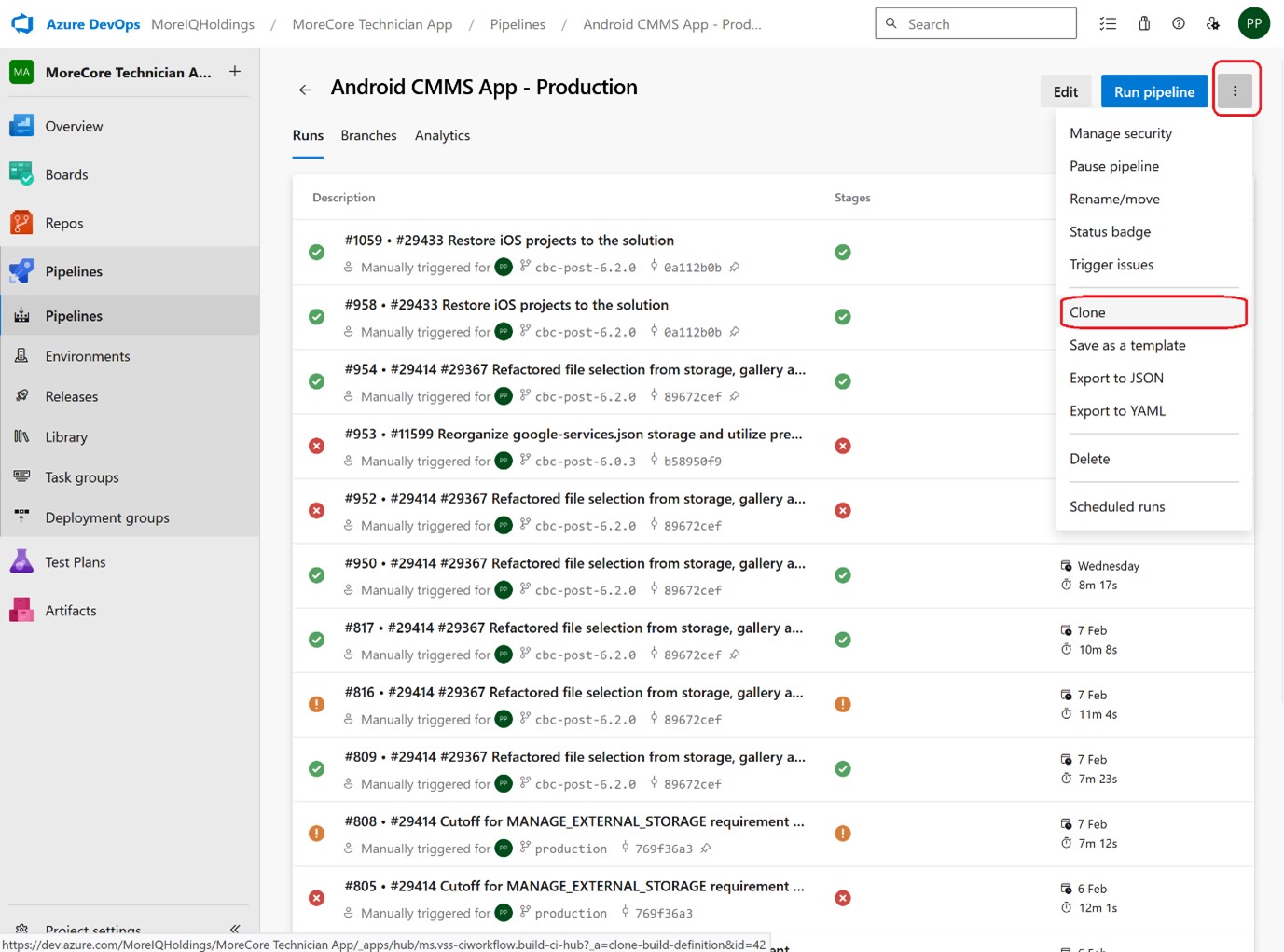
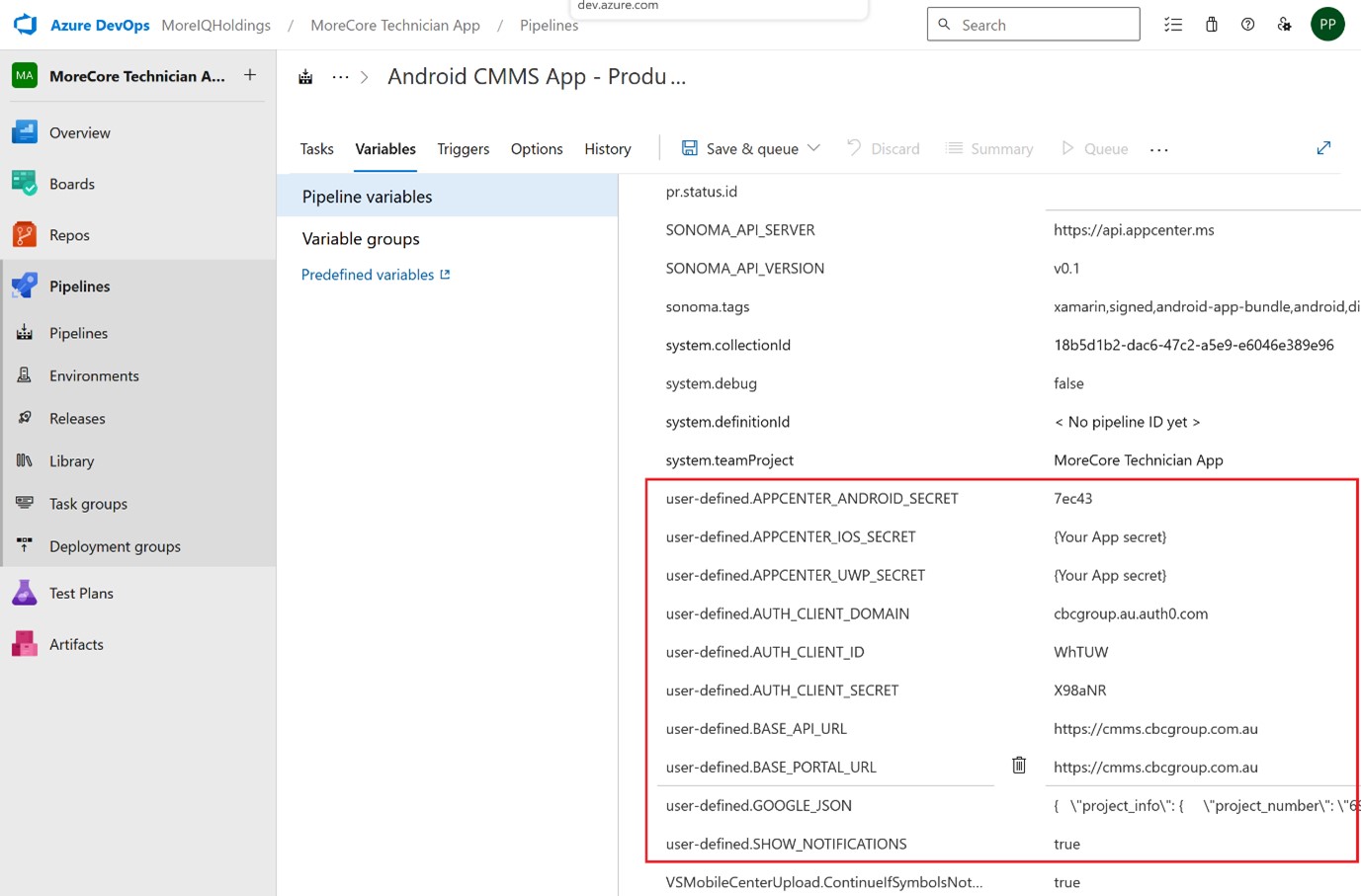
If the bundles created by any of those pipelines need to be pushed to the stores for testing, then you need to clone the respective Release pipeline and modify the source artifact to be the one from the newly cloned Build pipeline.
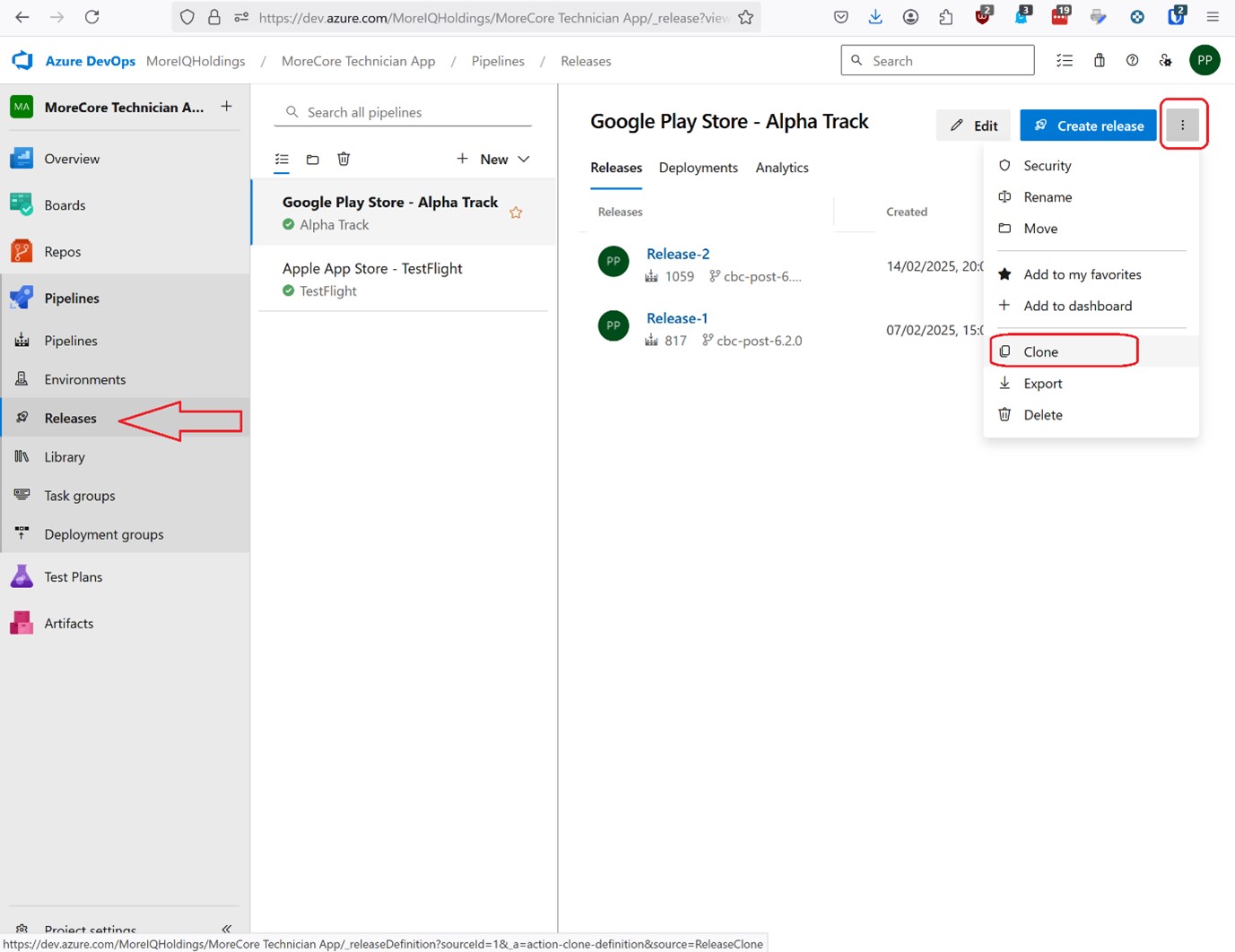
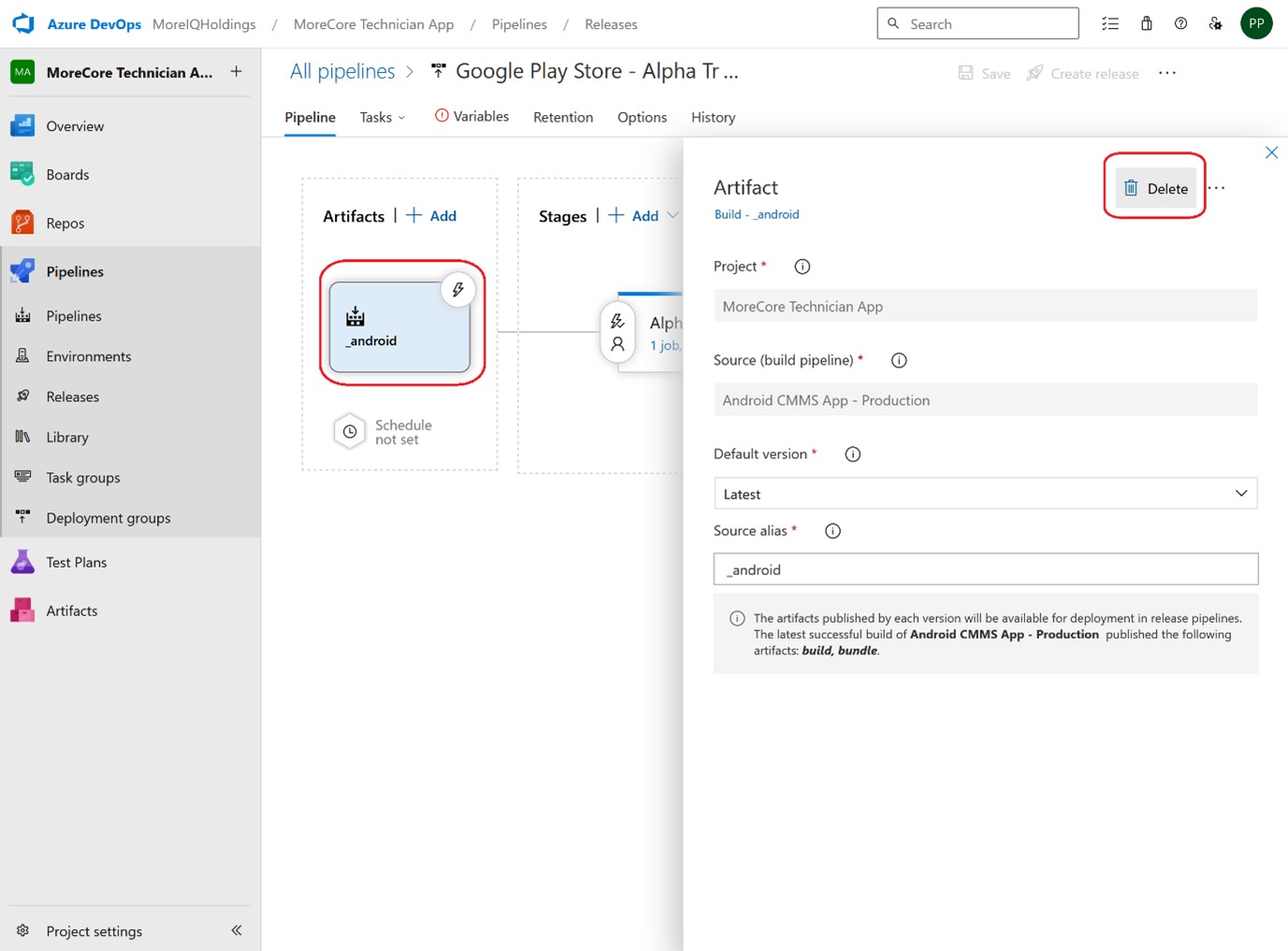
Select and delete the existing source artifact:
Then click Add and select the newly cloned build Pipeline
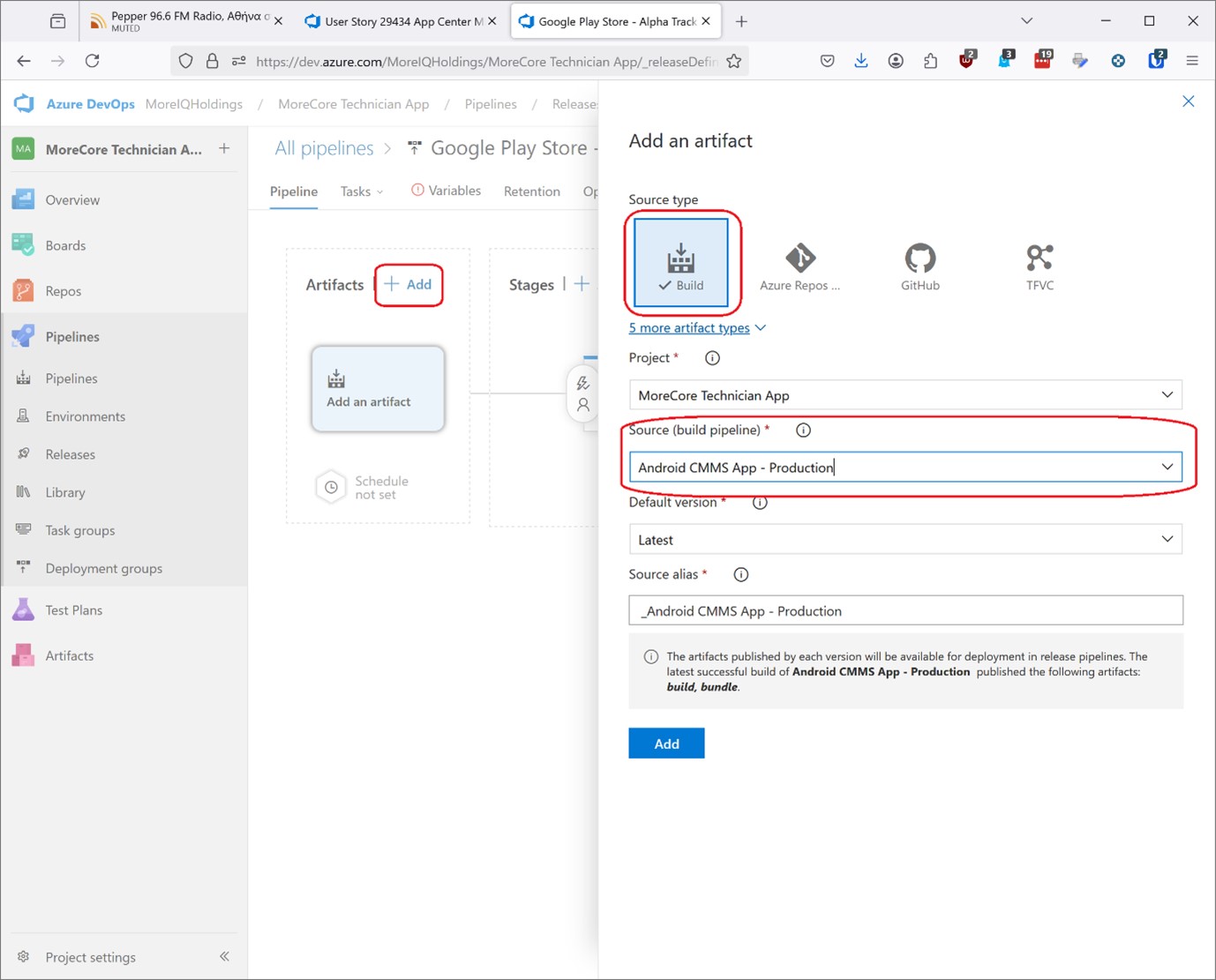
Click Add to finalize adding the new source artifact and save the new Release pipeline. It will then be ready to push the any bundles created for an alternative environment, to the respective App store, by creating a new release.