MOR-PROC-036 Version 1 (WIP) Last Review Date: May, 2025
Covers how to create and manage certificates for CMMS/Boomi integrations.
1. CMMS Public API Certificates for Boomi
Generate a new Certificate in Boomi
- In the Boomi component explorer, create a new ‘Certificate’ component.
- Click the ‘Generate’ button
- Enter details as per below.
- Common Name (CN): boomici.cbcgroup.com.au
- Organization (O): CBC Facilities Maintenance Pty Ltd
- Organizational Unit (OU): Morecore
- Locality (L): Port Kembla
- State/Province (ST): New South Wales
- Country (C): Australia
- Password: make up and record a strong password
- Signature Algorithm: SHA2-256
- Key Length: 2048
- Validity (in days): 365
- Save the certificate.
- Note the certificate expiration date.
- Create a reminder for prior to this date.
- Click the ‘Export Public Cert’ button
- This will initiate a download of the certificate in ‘.cer’. We need the cert in ‘.pem’ format, so we need to use software to change it. The private cert and will stay in Boomi. See below for steps related to the key.
Convert the Public Certificate
- Install ‘openSSL’ CLI if you don’t already have it.
- Or access it through git as per https://stackoverflow.com/questions/50625283/how-to-install-openssl-in-windows-10 (opens in a new tab)
- C:\Program Files\Git\usr\bin\
- Open a Command window and run the command: ‘openssl x509 -in cert.cer -out cert.pem’, as per https://sslhow.com/convert-cer-to-pem (opens in a new tab)
- Where ‘cert.cer’ is the filename of the certificate.
- This will create a copy of the .cer file but as a .pem
- Close the Command window.
Add Public Cert contents to CMMS
- In CMMS, navigate to the Public API settings for the appropriate Integration.
- Navigate to: Tenant Settings > Integration Settings > (specific integration)
- Copy the contents of the .pem into CMMS integration settings
- EXCLUDE the headers and footer date surrounding the cert data? Confirmed EXCLUDE. Copy and paste between the header and footer.
- Paste contents into the certificate field.
- Save.
Convert and Save the Private Key
- From the Boomi Certificate component, click ‘Export private key’.
- Convert the key from .pfx to .pem with the following OpenSSL command:
- openssl pkcs12 -in privkey.pfx -nocerts -nodes -out privkey.pem
- Enter key password during process
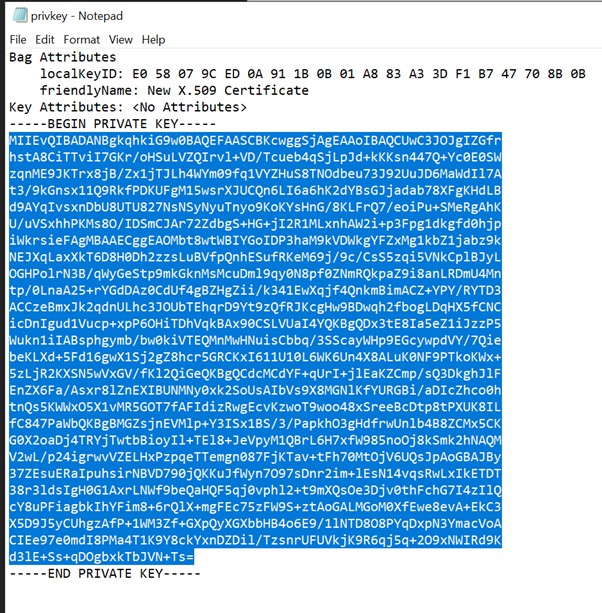
- Open the .pem file in a text editor
- Copy the key data from BETWEEN the '-----BEGIN PRIVATE KEY-----' header and '-----END PRIVATE KEY-----' footer. (Exclude the header and footer)
- Remove multiline formatting
- The copied data will include line break characters that need to be removed before the key can be used in Boomi. To rectify this, you can use the excel ‘CLEAN’ function. ‘=CLEAN(cell with multiline text)
- Paste the rectified key data into an appropriate Process Property within Boomi.
1.2. PFX content to copy